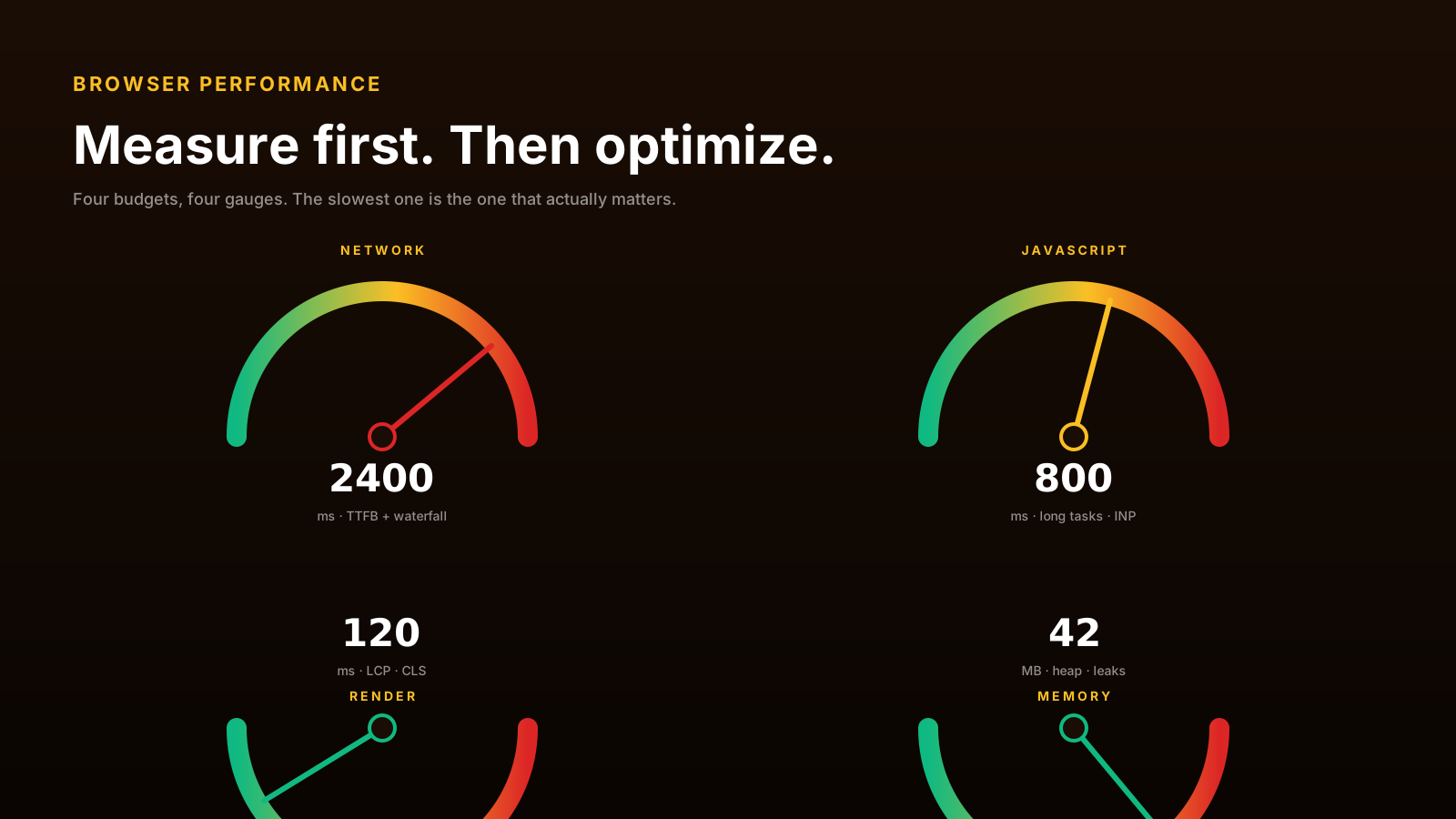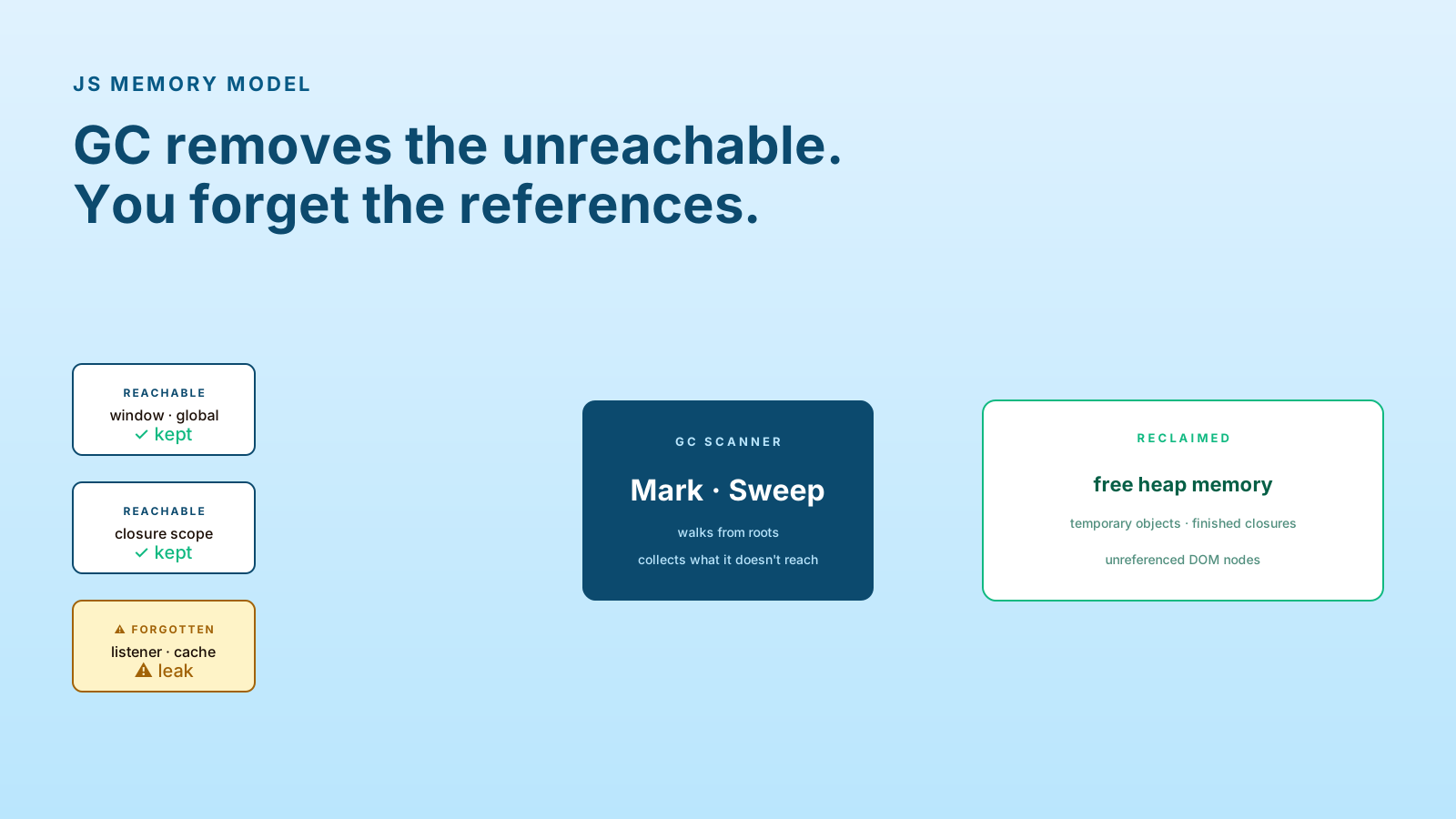
The Performance tab in Chrome DevTools shows everything that happened during a recording: every function call, every paint, every layout, every garbage collection. It's a lot. The first time you open it, it feels like trying to read a city map written in another alphabet.
The trick is knowing what to look at. Profiles answer questions; without a question, the data is just colors.
Flame Charts Show Time, Not Morality
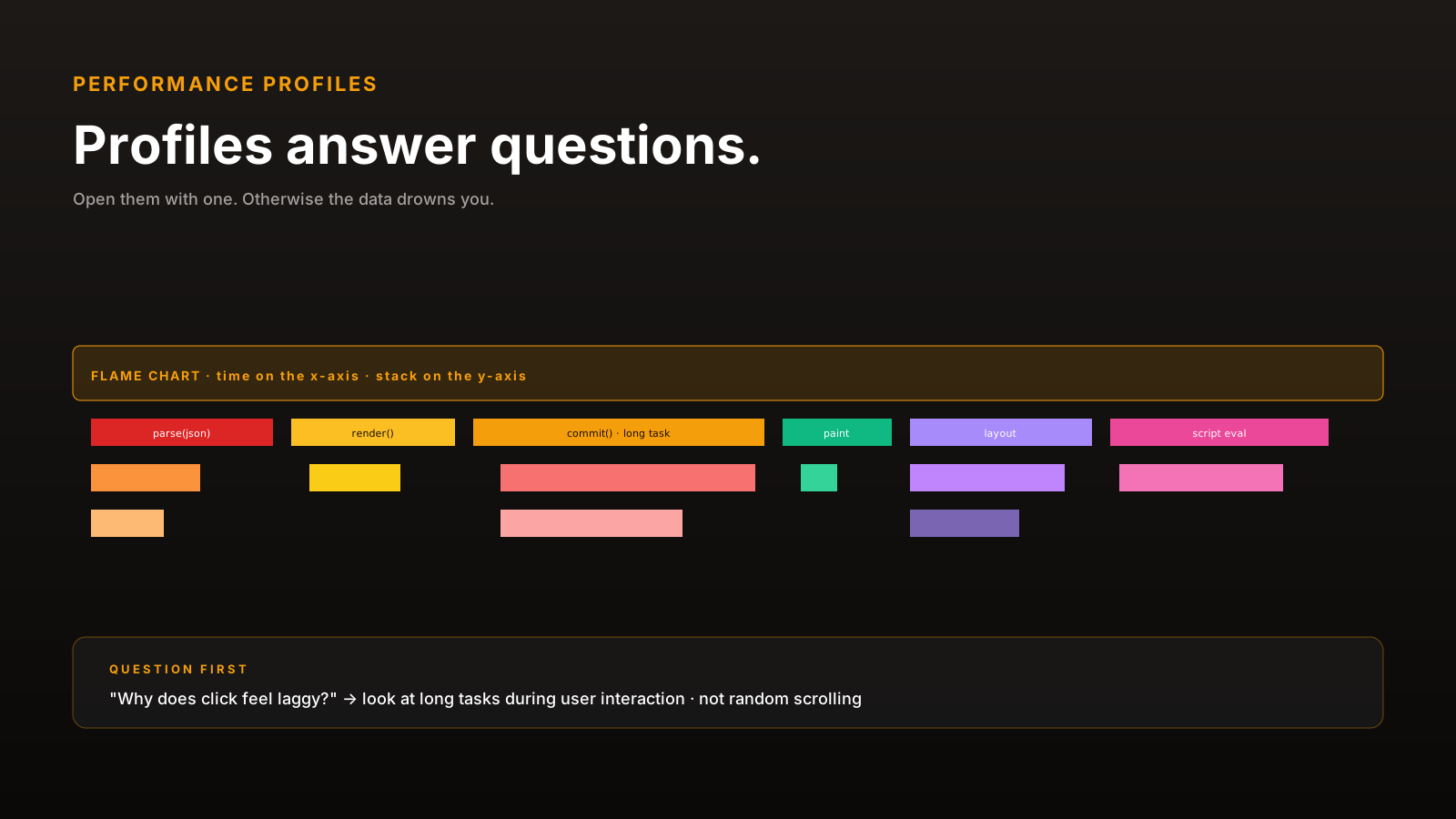
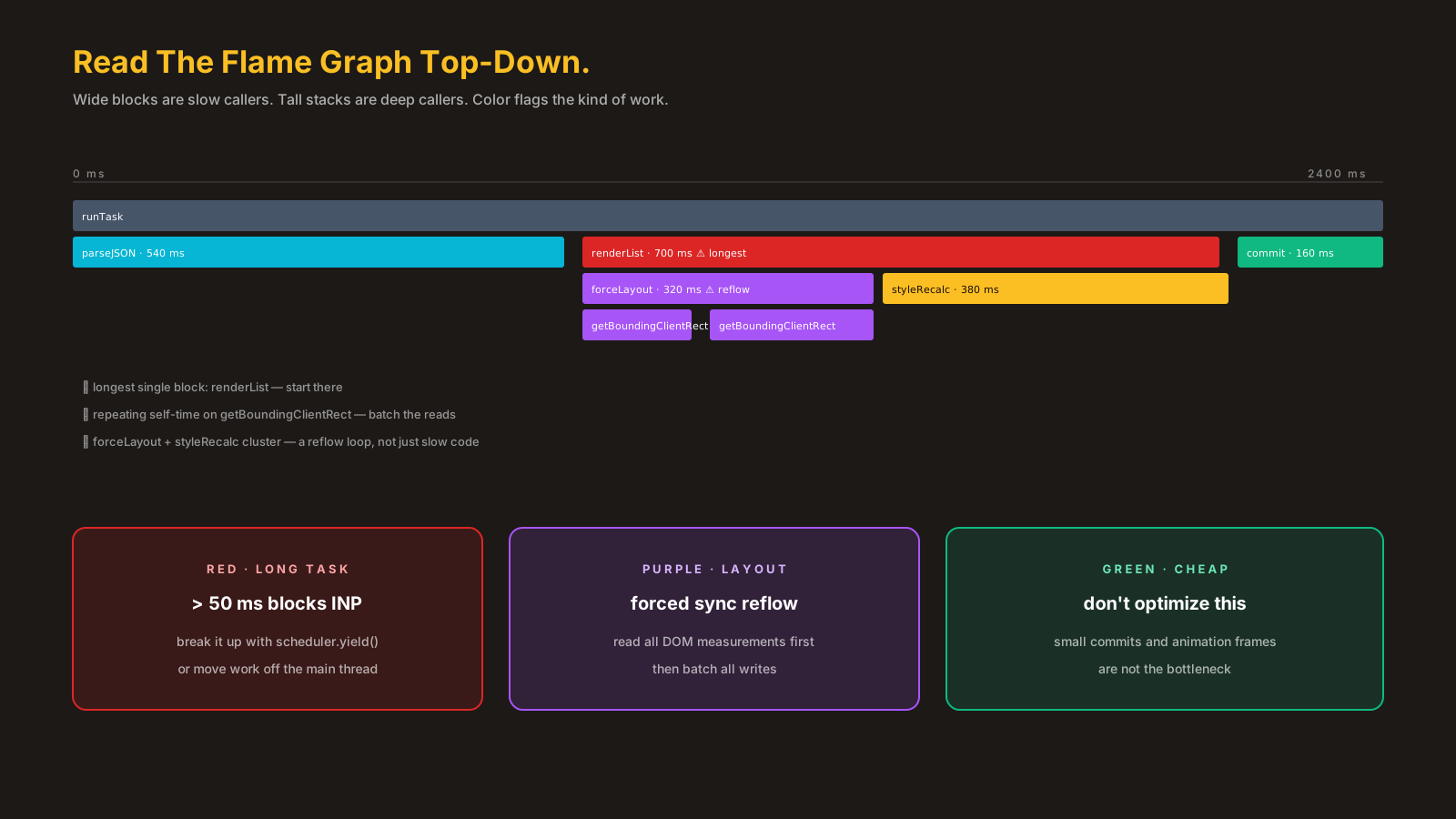
A flame chart shows the call stack over time. The y-axis is the stack depth (caller on top, callee below). The x-axis is wall-clock time. Wider bars took longer.
[ click handler                                  ]
 [ updateState                  ][ scheduleRender]
  [ heavyComputation ][ apply  ]
   [ parse ][ filter ]
Width is everything. A short bar is a fast function — even if it ran a million times. A wide bar is a slow one — even if it ran once. Optimizing a fast bar that ran a million times is usually wrong; it's already fast. Optimize the wide one.
DevTools color-codes by category: yellow is scripting, purple is rendering, green is painting. If your flame chart is mostly yellow, your bottleneck is JavaScript. Mostly purple? Layout. Mostly green? Paint. Each one needs a different fix.
Long Tasks Explain Jank
A "long task" is anything blocking the main thread for >50ms. The browser can't paint, can't respond to input, can't do anything else during that time.
In the Performance tab, long tasks appear as red-striped bars at the top. The summary panel shows duration. Click one and the bottom panel shows the call tree — exactly which functions ate the time.
The investigative pattern:
- Sort by self-time. Functions that did real work themselves (not just called others).
- Look for the leaf. A long
setStateis a symptom; the real work happened deeper. - Check call counts. A function called 50,000 times is suspicious even if each call is fast.
Three common offenders that show up:
- Large list rendering without virtualization
- Heavy computation in render that should be memoized or moved off the main thread
- Synchronous JSON parsing of large payloads (use
JSON.parsechunked or move to a Worker)
Memory Snapshots Show Retained Objects
Memory tab → Heap snapshot. Take one, do the suspicious action, take another. Use the "Comparison" view filtered to "objects allocated between snapshots."
What you're looking for: object counts that grew when they should have been stable. The classic "Detached HTMLDivElement" entry is a leaked DOM reference — a node removed from the document but still referenced from JavaScript.
For longer investigations, "Allocation instrumentation on timeline" records every allocation as it happens, with the call stack that triggered it. Useful for finding which code path is creating the leaked objects.
Three caveats:
- Take snapshots at idle. GC may not have run; trigger it manually with the trash icon.
- Compare apples to apples. Same starting state, same actions, different counts.
- Look at retainers, not just object counts. The retainer chain tells you what's holding the leaked object alive.
Profiles Need A Question
A profile without a question is impossible to read. Open one with a specific complaint:
- "The button feels slow when clicked." → Record, click, look at the long task that follows.
- "The page jumps after load." → Record load + a few seconds, look at layout shifts.
- "Memory grows when I scroll." → Record while scrolling, take heap snapshots before and after.
- "INP is bad on this route." → Use the Performance Insights panel which highlights interactions specifically.
Without a question, you'll waste an hour looking at colored bars and conclude "everything seems fine." The chart isn't lying — you just didn't ask it anything.
DevTools vs RUM
DevTools profiles are for understanding. RUM (Real User Monitoring) is for knowing what to investigate.
DevTools runs on your dev machine: fast CPU, fiber connection, no real users. The profile is honest about what your code does on that machine; not honest about what users actually experience. RUM data — INP percentiles by route, LCP distribution by device — tells you which routes need a profile in the first place.
The workflow: RUM identifies the slow route, DevTools profile diagnoses the cause, change ships, RUM confirms it helped. Skip either step and you're guessing.
Pro Tips
- Sort by self-time when looking for hot functions.
- Use the Bottom-Up tab for "where did the time really go" view.
- Throttle CPU 4x or 6x when profiling — expose problems users have on real devices.
- Turn on "Web Vitals" in DevTools settings — see LCP/CLS/INP markers in the trace.
- Save profiles before refactoring. Compare after to confirm the change helped.
Final Tips
Performance profiling stops being intimidating when you realize the tool is just answering questions. "Why is this slow?" is a question. "Show me everything" is not.
Open Performance with one specific complaint. Find the wide bar. Read the call tree underneath. Most performance bugs reveal themselves in the first wide bar of a long task.
Good luck — and may your flame charts always have a story to tell 👊