So you've shipped a feature, the design looks clean, the screenshots are perfect, the PR comments are all green checks - and then a user files a ticket that says the form is unusable with a keyboard. Or that the screen reader reads the whole nav twice. Or that the "Close" icon button has no accessible name and the assistive tech announces it as "button". None of those bugs were caught by your unit tests, none by your end-to-end tests, and none by the QA pass.
That's the awkward thing about accessibility in JS apps. It looks like one big topic, but in practice it's three or four different problems sitting on top of each other, and a test strategy that catches one of them is usually blind to the others. Automated tooling - axe, jest-axe, cypress-axe, Lighthouse - catches the structural stuff: missing alt text, bad colour contrast, form controls without labels, invalid ARIA. That's somewhere between 30 and 60 percent of real-world a11y defects depending on whose study you believe. The rest needs keyboard testing, screen reader spot-checks, and a developer who's read enough of the WCAG criteria to know what to look for in code review.
This post is about how to actually do all four - and how to make the automated parts cheap enough that they run on every PR without anyone complaining.
The Layers (And Why You Need More Than One)
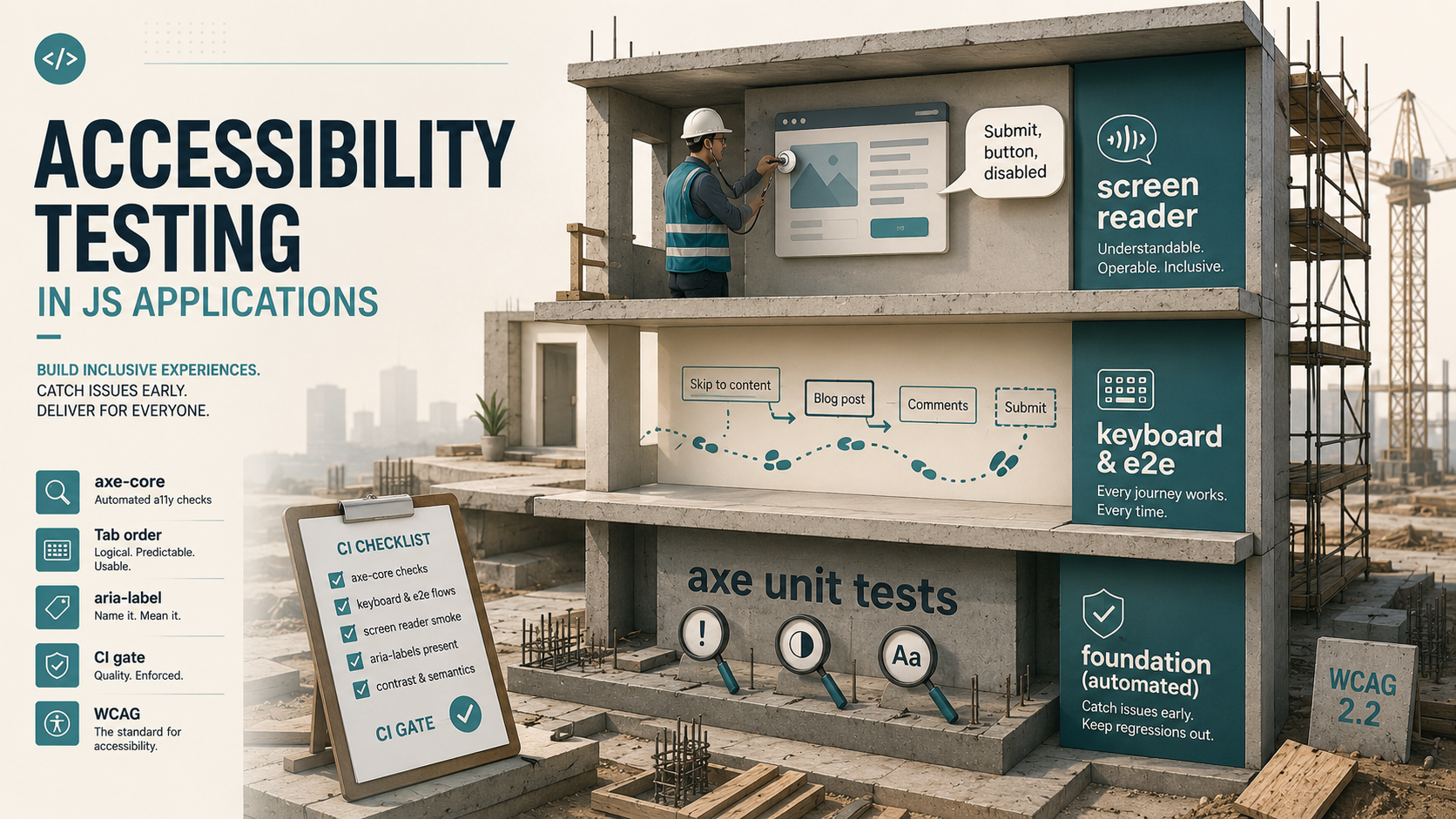
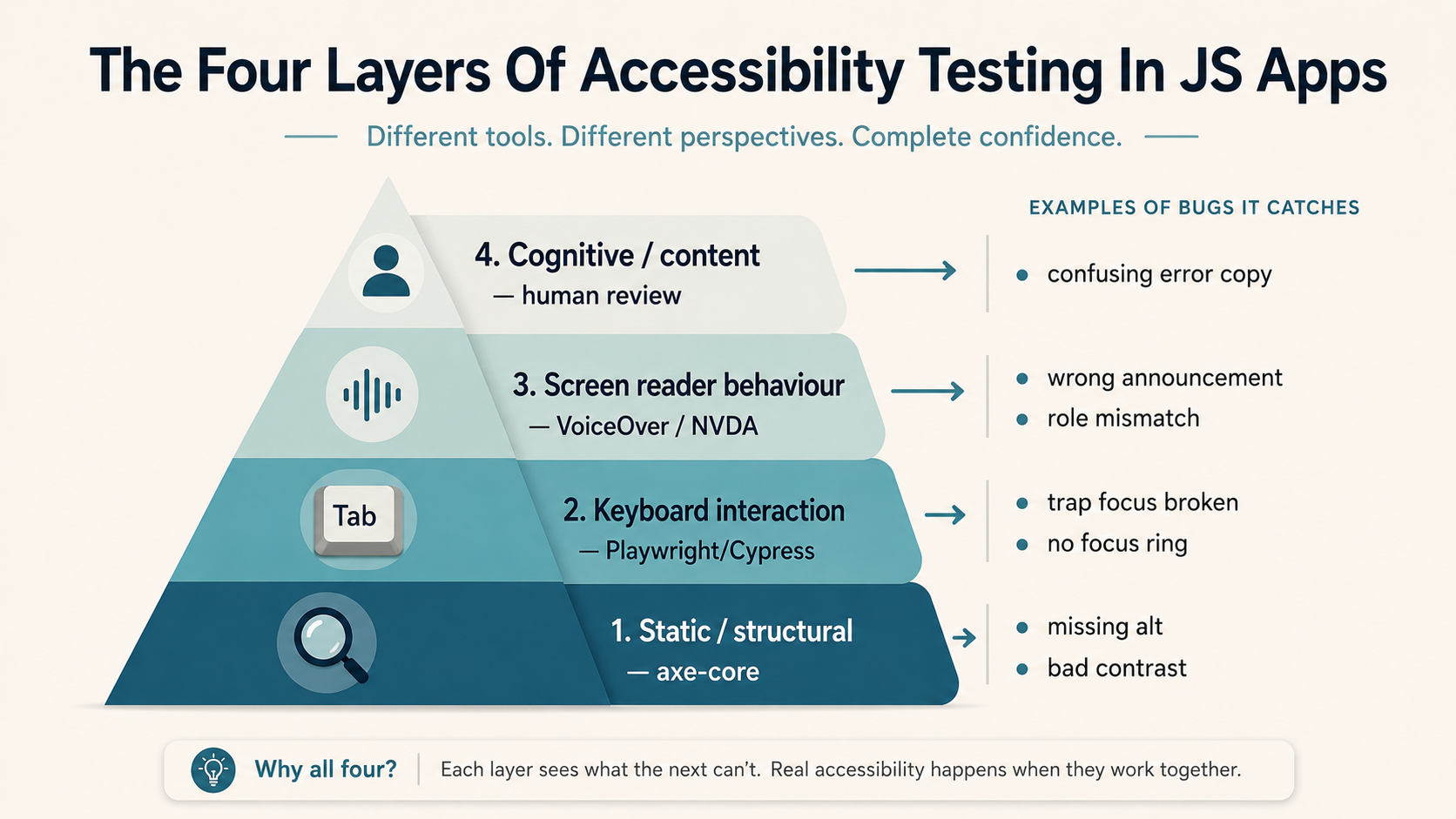
Before any tooling, get the mental model straight. Accessibility testing splits roughly like this:
- Static / structural - does the rendered HTML have the right semantics, labels, roles, contrast? Catchable by axe and friends, runs in milliseconds.
- Keyboard interaction - can a user reach every interactive element with
Tab, activate it withEnter/Space, escape modals, navigate menus with arrow keys? Catchable in e2e tests with a real DOM and a real focus model. - Screen reader behaviour - does VoiceOver / NVDA / JAWS announce the right thing at the right time? Mostly manual; partly automatable by checking the accessibility tree.
- Cognitive / content - is the language clear, are the error messages helpful, is the page predictable? Not automatable. Hire a real human for this one.
Most teams skip straight to (1), add CI, and call it done. That's better than nothing, but the bugs that make users abandon your app live in (2) and (3). The strategy below covers all four with a sane amount of effort.
Layer 1 - axe At The Component Level
If you only adopt one tool from this article, make it axe-core. It's the engine behind Deque's commercial scanners, it's open source, it ships rule packs that map to WCAG criteria, and it has bindings for every JS test runner you care about.
The cheapest, fastest place to run axe is in your component tests. Jest, Vitest, whatever - wherever you're already rendering a component with @testing-library/react (or the Vue / Svelte equivalent), you can run axe over the rendered output in the same test.
import { render } from '@testing-library/react';
import { axe, toHaveNoViolations } from 'jest-axe';
import { Button } from './Button';

expect.extend(toHaveNoViolations);

test('Button has no a11y violations', async () => {
  const { container } = render(<Button>Save</Button>);
  const results = await axe(container);
  expect(results).toHaveNoViolations();
});

test('IconButton without accessible name is caught', async () => {
  const { container } = render(<button aria-hidden="true"><svg /></button>);
  const results = await axe(container);
  // This will fail — and that's the point.
  expect(results).toHaveNoViolations();
});
The second test fails because a button with aria-hidden="true" and no accessible name violates the button-name rule. The error message axe produces is long and useful - it tells you the rule ID, the WCAG criterion, the impact level, and a link to a page explaining the fix. That's why you write the test even though you "know" the code is broken - when a junior dev breaks it three months from now, the failing test is also the documentation.
A few things to know about running axe in unit tests:
- It's not free. A single
axe(container)call typically runs in 50-200ms. On a 500-test suite, that's a meaningful chunk of CI time. Pick your battles - run axe on the page-level components and on shared design-system primitives, not on every leaf component. - jsdom is not a browser. Some rules require real layout (colour contrast, for example), and axe will skip or under-report those in jsdom. Don't rely on jest-axe for contrast - that's an e2e-layer concern.
- The default rule set is opinionated. If a rule is consistently giving false positives in your codebase, disable it explicitly per test rather than ignoring failures:
axe(container, { rules: { 'color-contrast': { enabled: false } } }).
For Vue, swap jest-axe for the same library - it works on any DOM container. For Svelte, same story. For Angular, you'll want @axe-core/playwright or run axe in a Karma test against a real browser, because the testing-library bindings are weaker there.
Layer 2 - axe In End-to-End Tests
Unit-level axe catches the obvious stuff, but a real page has things unit tests don't - actual CSS, the full DOM, scrolled state, focus, third-party widgets loaded at runtime. So you also run axe in your e2e suite, against the running app, in a real browser.
If you're using Playwright:
import { test, expect } from '@playwright/test';
import AxeBuilder from '@axe-core/playwright';

test('Checkout page has no a11y violations', async ({ page }) => {
  await page.goto('/checkout');

  const results = await new AxeBuilder({ page })
    .withTags(['wcag2a', 'wcag2aa', 'wcag21aa'])
    .analyze();

  expect(results.violations).toEqual([]);
});

test('Checkout page after opening the payment modal', async ({ page }) => {
  await page.goto('/checkout');
  await page.getByRole('button', { name: /pay with card/i }).click();

  // Wait for the modal to mount and focus to land inside it
  await expect(page.getByRole('dialog', { name: /payment details/i })).toBeVisible();

  const results = await new AxeBuilder({ page }).analyze();
  expect(results.violations).toEqual([]);
});
The second test matters more than the first. Modals, dropdowns, toasts, tooltips, anything that mounts after a user interaction - those are the parts where a11y bugs live, and a "scan the page on load" test will never find them. Whenever you write an e2e test that exercises a stateful UI, add an axe pass at the moment the new UI is visible.
Cypress users get the same flow with cypress-axe:
describe('Checkout', () => {
  beforeEach(() => {
    cy.visit('/checkout');
    cy.injectAxe();
  });

  it('has no violations on load', () => {
    cy.checkA11y();
  });

  it('has no violations with the payment modal open', () => {
    cy.findByRole('button', { name: /pay with card/i }).click();
    cy.findByRole('dialog').should('be.visible');
    cy.checkA11y(); // re-scan after the modal is mounted
  });
});
cy.checkA11y() accepts a selector if you want to scope the scan to one region - useful when a third-party widget on the page has known violations you can't fix.
What Tags To Use
axe groups rules by tag. The common ones:
wcag2a,wcag2aa,wcag2aaa- WCAG 2.0 levels A, AA, AAA.wcag21a,wcag21aa- WCAG 2.1 additions.wcag22aa- WCAG 2.2 (introduces target size, focus appearance, dragging movements).best-practice- axe's own recommendations beyond WCAG.
Most teams aim for wcag2a + wcag2aa + wcag21aa as a baseline. Add best-practice only if you're sure you want axe's opinion on top of the spec - some best-practice rules are genuinely debatable and will create noise.
Layer 3 - Keyboard Testing
axe doesn't operate the page. It looks at the DOM at one moment in time. So everything that requires moving through the UI - tab order, focus traps, escape-to-close, arrow-key menus - is invisible to it.
This is where you write explicit keyboard tests. They're short, they read like a script, and they catch the bugs that turn into "the app is unusable" support tickets.
Tab Order
A user navigating with the keyboard expects Tab to move forward through interactive elements in a sensible order - usually visual top-to-bottom, left-to-right. A tabindex="3" on one button and tabindex="0" on five others creates a janky, surprising order. Test it:
import { test, expect } from '@playwright/test';

test('signup form tab order matches visual order', async ({ page }) => {
  await page.goto('/signup');

  // Focus the first field
  await page.getByLabel('Email').focus();

  // Press Tab and assert focus moves to each field in the expected order
  const expectedOrder = ['Email', 'Password', 'Confirm password', 'Country', 'Sign up'];

  for (let i = 1; i < expectedOrder.length; i++) {
    await page.keyboard.press('Tab');
    const focused = await page.evaluate(() => document.activeElement?.getAttribute('aria-label')
      || document.activeElement?.textContent
      || (document.activeElement as HTMLInputElement)?.name);
    expect(focused).toContain(expectedOrder[i]);
  }
});
This test is brittle by design - it will fail the moment somebody adds a hidden field with tabindex="0" or reorders the markup without thinking about focus. Brittleness is the feature.
Focus Traps In Modals
When a modal is open, Tab should cycle within the modal - never leak to the page underneath. When the modal closes, focus should return to the element that opened it. This is one of the most-broken patterns on the web, partly because frameworks don't ship it by default.
import { test, expect } from '@playwright/test';

test('payment modal traps focus and restores it on close', async ({ page }) => {
  await page.goto('/checkout');

  const openBtn = page.getByRole('button', { name: /pay with card/i });
  await openBtn.click();

  const modal = page.getByRole('dialog', { name: /payment details/i });
  await expect(modal).toBeVisible();

  // First focusable inside the modal should be focused
  await expect(modal.locator(':focus')).toBeVisible();

  // Tabbing should keep focus inside the modal
  for (let i = 0; i < 20; i++) {
    await page.keyboard.press('Tab');
    const inside = await modal.evaluate((m, el) => m.contains(el), await page.evaluate(() => document.activeElement));
    expect(inside).toBe(true);
  }

  // Escape closes the modal and returns focus to the trigger
  await page.keyboard.press('Escape');
  await expect(modal).toBeHidden();
  await expect(openBtn).toBeFocused();
});
Three things this test catches, in roughly this order of frequency:
- The dev forgot to focus anything inside the modal when it opens.
Tabfrom the last focusable element jumps out of the modal to the page behind it.Escapedoesn't close the modal, or it does but focus is lost (lands on<body>).
If you use a headless UI library like Radix, React Aria, or Headless UI, the trap is built in. The test still has value - because nothing stops a teammate from rolling a custom modal next sprint.
Activating Controls
Enter activates buttons and links. Space activates buttons but not links. Custom widgets with role="button" need both. If you've ever written a <div onClick={...}> styled as a button, this is where it bites you:
test('custom button is activatable via keyboard', async ({ page }) => {
  await page.goto('/');
  const customBtn = page.getByRole('button', { name: /open menu/i });

  await customBtn.focus();
  await page.keyboard.press('Enter');
  await expect(page.getByRole('menu')).toBeVisible();

  await page.keyboard.press('Escape');
  await customBtn.focus();
  await page.keyboard.press('Space');
  await expect(page.getByRole('menu')).toBeVisible();
});
A <div onClick> will fail this test on both presses. A real <button> passes for free. That's the whole argument for using semantic HTML - your test is six lines, not sixty.
Focus Visibility
The CSS :focus-visible pseudo-class draws a ring when the user is keyboarding. Some design systems hide all focus rings with outline: none and never add a replacement. That's a WCAG 2.4.7 violation, and it's catchable in a test if you're willing to look at computed styles:
test('all interactive elements show a visible focus indicator', async ({ page }) => {
  await page.goto('/');
  const buttons = page.getByRole('button');
  const count = await buttons.count();

  for (let i = 0; i < count; i++) {
    const btn = buttons.nth(i);
    await btn.focus();
    const outline = await btn.evaluate((el) => getComputedStyle(el).outlineStyle);
    const boxShadow = await btn.evaluate((el) => getComputedStyle(el).boxShadow);
    // Either outline or box-shadow must indicate focus
    expect(outline !== 'none' || boxShadow !== 'none').toBe(true);
  }
});
It's a heuristic, not a proof - box-shadow could be cosmetic. But it catches the most common regression: somebody adds a global *:focus { outline: none; } and forgets to add :focus-visible styles back.
Layer 4 - Screen Reader Spot-Checks
Here's the uncomfortable truth: there is no fully automated screen reader test. There are tools that read the accessibility tree (the structure assistive tech sees), and you can assert on that, but the actual announcement - what the user hears - depends on the screen reader, the browser, the OS, and the user's verbosity settings. Two screen readers can announce the same DOM differently.
So the strategy is: assert on the accessibility tree in tests, and run a 10-minute manual pass with a real screen reader before each release.
Inspecting The Accessibility Tree
Playwright exposes accessibility.snapshot():
test('product card exposes the right info to assistive tech', async ({ page }) => {
  await page.goto('/products/42');
  const snapshot = await page.accessibility.snapshot();

  // Find the "Add to cart" button in the tree
  const findNode = (node, predicate) => {
    if (predicate(node)) return node;
    for (const child of node.children || []) {
      const found = findNode(child, predicate);
      if (found) return found;
    }
    return null;
  };

  const cartButton = findNode(snapshot, (n) => n.role === 'button' && /add to cart/i.test(n.name));
  expect(cartButton).not.toBeNull();
  expect(cartButton?.disabled).toBeUndefined();
});
This catches the bug where the visual button says "Add to cart" but its accessible name is something else, or where a button is visually disabled but the accessibility tree doesn't reflect it.
Testing Library gives you the same lens at the component level - getByRole('button', { name: /add to cart/i }) is essentially querying the accessibility tree. If your components rely on it for tests, you've already accidentally written half the screen-reader contract into your test suite.
The Manual Pass
Once or twice per release, sit down for ten minutes with a screen reader on:
- macOS - VoiceOver, built in.
Cmd + F5to toggle. Common shortcuts:Ctrl + Option + Ato read all,Ctrl + Option + arrow keysto navigate,Ctrl + Option + Uto open the rotor. - Windows - NVDA, free download from NV Access. JAWS is the commercial alternative, but NVDA covers most of the same ground.
- iOS - VoiceOver, in Settings → Accessibility. Three-finger swipe gestures.
- Android - TalkBack, in Settings → Accessibility.
You don't need to learn all of these. Pick one - VoiceOver if you're on a Mac, NVDA if you're on Windows - and go through the critical flows of your app. Sign up, sign in, the main feature, checkout. Listen for things like:
- The page title is announced when the route changes (SPA navigation usually breaks this - you need a live region or a focus shift).
- Form errors are announced when they appear, not just visible on the screen.
- Loading states are announced (an empty page that "just loads" is silent and confusing).
- Decorative icons are silent. Functional icon buttons have a label.
- Modal dialogs announce themselves as dialogs, not as generic regions.
This is the part where automation hands the baton to a human. You will not catch "the announcement says 'button button submit button' three times" in any test framework - but you will catch it in 30 seconds with VoiceOver on.
Wiring It Into CI
Tests that only run locally don't exist. The plan is simple: axe runs on every PR; the e2e keyboard suite runs on every PR or nightly depending on speed; Lighthouse / pa11y runs on a deployed preview.
A minimal GitHub Actions workflow:
name: Accessibility
on:
  pull_request:
    branches: [main]

jobs:
  unit-axe:
    runs-on: ubuntu-latest
    steps:
      - uses: actions/checkout@v4
      - uses: actions/setup-node@v4
        with:
          node-version: 20
          cache: npm
      - run: npm ci
      - run: npm test -- --testPathPattern='.*\.a11y\.test\.tsx?$'

  e2e-axe:
    runs-on: ubuntu-latest
    steps:
      - uses: actions/checkout@v4
      - uses: actions/setup-node@v4
        with:
          node-version: 20
          cache: npm
      - run: npm ci
      - run: npx playwright install --with-deps chromium
      - run: npm run build
      - run: npm run start &
      - run: npx wait-on http://localhost:3000
      - run: npx playwright test --grep @a11y
Two things worth pointing out. First, the unit-axe job runs a filtered subset of your Jest suite - tests named *.a11y.test.tsx - so you don't pay the axe cost on every test. Second, the e2e job uses a @a11y tag on Playwright tests (you mark relevant tests with test('@a11y modal traps focus', ...)) so you can run them as a separate job or in their own browser if you want to.
Lighthouse CI For Pages
For deployed previews, Lighthouse CI gives you a single accessibility score per route plus the underlying violations. It overlaps with axe (Lighthouse uses axe under the hood for a11y) but adds performance and SEO checks, and it produces a nice report artifact:
name: Lighthouse
on:
  deployment_status

jobs:
  lhci:
    if: ${{ github.event.deployment_status.state == 'success' }}
    runs-on: ubuntu-latest
    steps:
      - uses: actions/checkout@v4
      - uses: treosh/lighthouse-ci-action@v12
        with:
          urls: |
            ${{ github.event.deployment_status.target_url }}
            ${{ github.event.deployment_status.target_url }}/checkout
          uploadArtifacts: true
          temporaryPublicStorage: true
configPath: ./.lighthouserc.json{
"ci": {
"assert": {
"assertions": {
"categories:accessibility": ["error", { "minScore": 0.95 }]
}
}
}
}Pick a threshold you're willing to enforce. A perfect 100 is rarely worth the effort; 95 is realistic and meaningful.
When To Fail The Build
The temptation is to fail every build on any violation. The reality is messier - you'll hit false positives, you'll hit issues in third-party widgets you can't fix, and you'll get the "a11y job is always red, just ignore it" culture, which is worse than no job at all.
A sustainable rule of thumb:
- Critical / serious impact violations (from axe's
impactfield) → fail the build. - Moderate / minor → report but don't fail; review weekly.
- Known exceptions → file a comment in the test with a Jira/Linear link, suppress that specific rule for that specific selector. Don't blanket-disable rules.
In Playwright + axe:
const results = await new AxeBuilder({ page })
  .disableRules(['region']) // known issue in third-party chat widget, JIRA-1234
  .analyze();

const blocking = results.violations.filter(
  (v) => v.impact === 'critical' || v.impact === 'serious'
);
expect(blocking).toEqual([]);
Triage the moderates with console.log(results.violations) in a separate report job, not as a hard failure.
Patterns That Trip People Up
A few JS-specific patterns that don't show up in generic "a11y 101" posts:
Client-side route changes. When your SPA changes routes, the browser doesn't announce anything - there's no full page load. Users on screen readers can find themselves on a new page with no signal. Fix it by either moving focus to the new page's <h1> on route change, or by writing to a role="status" live region with the new title.
Async form validation. A spinner appears, then an error message appears. The screen reader user heard nothing about either. Wrap the error message container in role="alert" (or aria-live="assertive") so it's announced when its content changes. Same for success states with role="status" / aria-live="polite".
Disabled buttons that look enabled. A button greyed out via CSS but missing the disabled attribute is fully clickable for everyone and looks enabled to screen readers. Either truly disable it (<button disabled>) or change its state via aria-disabled="true" and prevent the click handler from running. Pick one and be consistent.
Custom dropdowns / comboboxes. This is the part of a11y where DIY almost always loses. The WAI-ARIA Authoring Practices spec for a combobox is six pages of state machine. Headless UI libraries (Radix, React Aria, Reach UI, Headless UI from Tailwind Labs) get this right. Build on them.
Icons-only buttons. Every icon-only button needs an aria-label. Every. Single. One. The number of "delete" trash-can icons in production that announce as just "button" is alarming. axe will catch most of them - but it can't catch the ones where you added a tooltip and assumed the tooltip's content was the accessible name. It isn't.
Toast notifications. A toast that pops up for three seconds and disappears is invisible to keyboard users (no time to react) and unreliable for screen readers (the live region might not fire before the element unmounts). The fix is usually a longer timeout, a dismiss button, and a role="status" wrapper that's mounted persistently and has its text content swapped.
What "Good" Looks Like
A team that's serious about this has roughly these signals:
- Every page-level component has a
*.a11y.test.tsxwith at least oneexpect(await axe(container)).toHaveNoViolations(). - Every interactive widget (modal, menu, combobox, tabs) has a keyboard test in the e2e suite.
- CI fails on critical/serious axe violations on PRs.
- Lighthouse runs on each preview deploy with a 95+ accessibility threshold.
- One engineer per sprint does a 30-minute manual screen reader pass on the new flows.
- The design system documents focus styles, ARIA patterns, and keyboard shortcuts for each component.
You don't need to land all six at once. Start with axe in unit tests - it's a one-day adoption - and add the next layer when the previous one stops finding bugs.
What Automated Tests Can't Tell You
It's worth being honest about the ceiling. axe and friends catch the structural defects. Keyboard tests catch the interaction defects. Screen reader tools catch the announcement defects. None of them tell you:
- Whether your error message text actually helps a user understand the problem.
- Whether the heading hierarchy makes sense (it might be structurally valid and still confusing).
- Whether a user with a cognitive disability can follow a multi-step flow.
- Whether your tab order is logical - only that focus moves through every element.
- Whether your colour scheme works for someone with deuteranopia, tritanopia, or low vision (contrast ratios are a proxy, not a guarantee).
For all of that, the test is a real user. If your product matters and your budget allows, hire a user-testing service that includes assistive-tech users. The first session you run will surface things no test suite would find - and after that, every CI gate you add prevents regression on what you already learned.
Accessibility testing in JS apps is not one tool, one config, one CI job. It's a small stack of cheap habits - axe in unit tests, axe in e2e tests, a handful of keyboard scripts, occasional screen reader passes - that, taken together, make your app usable by a meaningful chunk of users who were quietly being locked out of it before. The hard part isn't the tooling. The hard part is starting before someone files the ticket.