Accessibility tends to land on a Vue project the same way: a screenshot from a screen-reader user, an audit report from a client, or a tab-key test that nobody passed. Suddenly there's a sprint dedicated to "fixing a11y," and the work is harder than it should be because keyboard behavior, focus management, and ARIA were not designed into the components from day one.
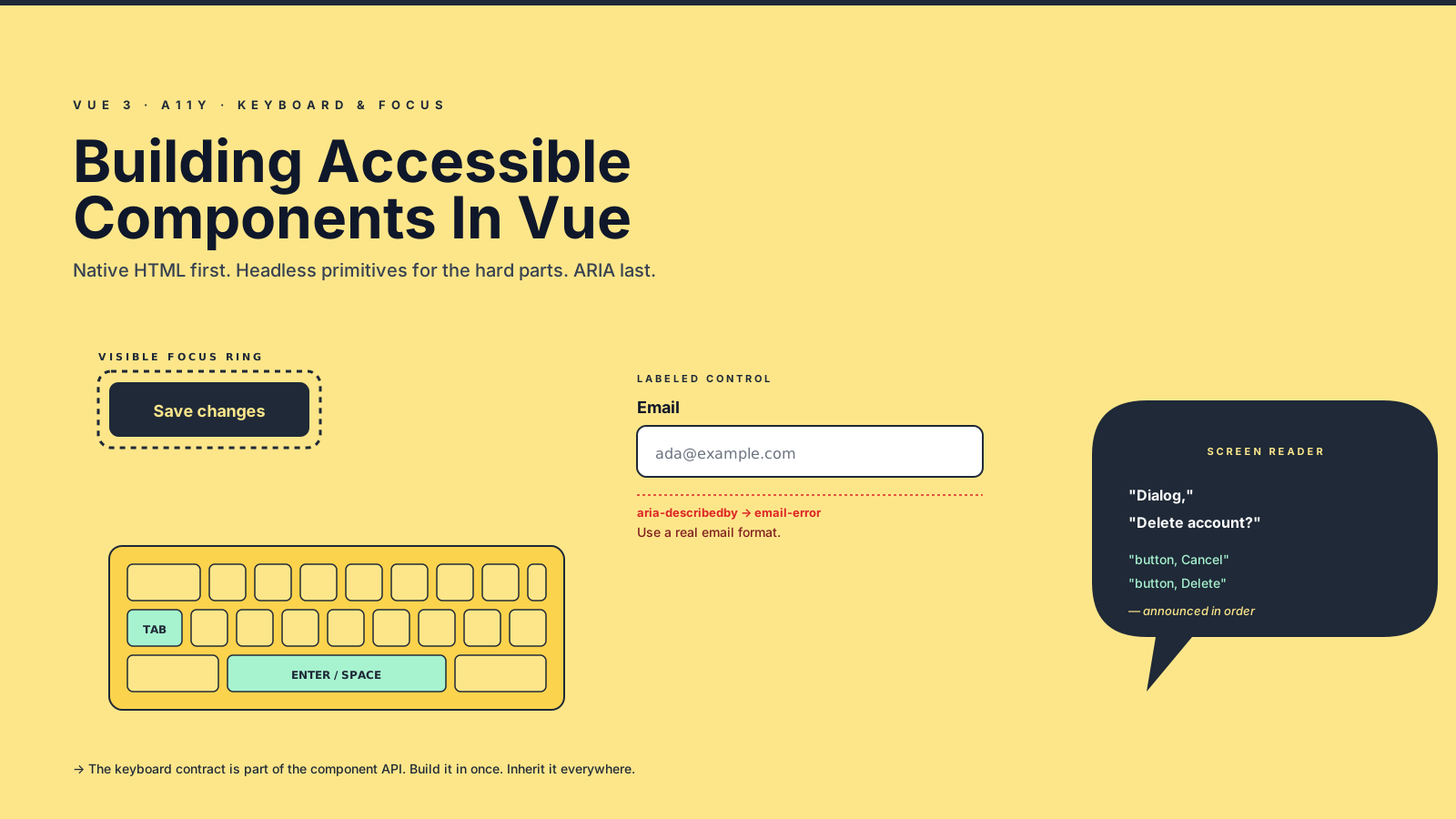
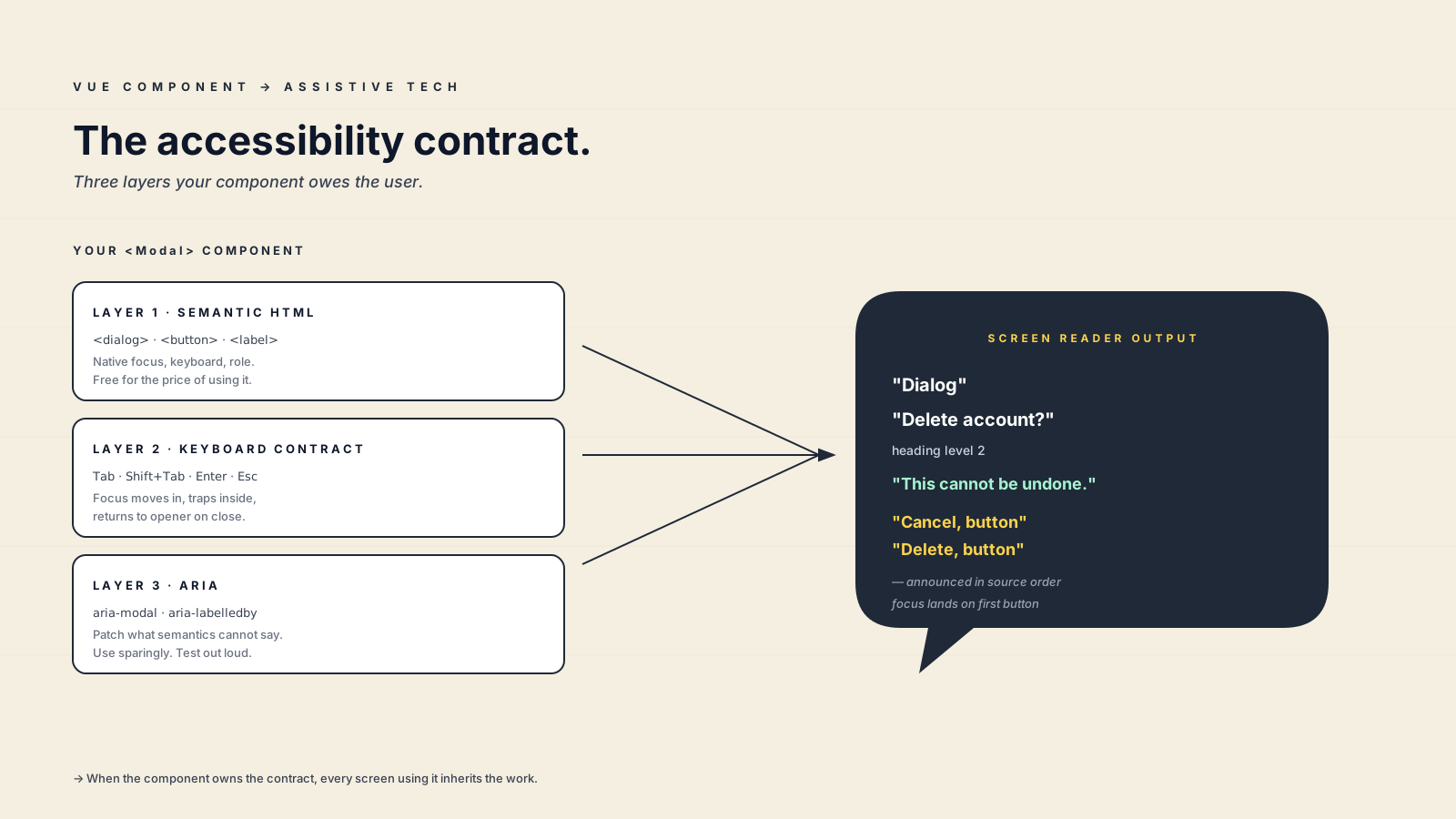
The fix is not a tooling problem. It's a habit. When you build a <Modal>, a <Combobox>, a <Tabs>, or a <Menu>, the keyboard contract and the focus contract are part of the API, just like props and events. If you build them in once, every screen using the component inherits them. If you bolt them on later, you patch them screen by screen forever.
This article walks through the accessibility patterns that matter most in Vue 3 components, the headless libraries that solve the hardest pieces for you, and the small handful of tools — VueUse, vee-validate, the native <dialog> — that earn their keep.
Start With The Right Element
Most a11y bugs are not ARIA bugs. They're "we used a <div> with a click handler instead of a <button>" bugs. Native elements come with focus behavior, keyboard behavior, and screen-reader semantics for free. ARIA is the patch you apply when nothing native fits.
<!-- Wrong: not focusable, not keyboard-operable, no role -->
<div class="btn" @click="open">Open settings</div>

<!-- Right: native focus, native keyboard activation, native semantics -->
<button type="button" class="btn" @click="open">Open settings</button>
The same goes for links versus buttons (does it navigate? <a>. does it act? <button>), checkboxes versus toggle buttons, and form controls versus styled spans. If the element you are styling against the design has the right semantics, use it. If you have to make a <div> act like a button, you owe the user tabindex="0", role="button", keydown handling for Enter and Space, and a focus ring that matches the rest of the app — at which point you've reimplemented <button>.
The native <dialog> element has matured. By 2025 it ships with reliable browser support for modal behaviour (the rest of the page goes inert when you call showModal()), Esc to close, and proper return-of-focus when the dialog closes. The W3C APA Working Group's current guidance is that <dialog> does not need a JS focus trap on top — Tab cycles inside the dialog because the rest of the page is inert. For a basic confirm or alert dialog, reach for it before reaching for a custom modal:
<script setup lang="ts">
import { ref } from 'vue'
const dialogRef = ref<HTMLDialogElement | null>(null)
const open = () => dialogRef.value?.showModal()
const close = () => dialogRef.value?.close()
</script>

<template>
  <button type="button" @click="open">Delete account</button>
  <dialog ref="dialogRef" aria-labelledby="confirm-title">
    <h2 id="confirm-title">Delete account?</h2>
    <p>This cannot be undone.</p>
    <button type="button" @click="close">Cancel</button>
    <button type="button" @click="confirm">Delete</button>
  </dialog>
</template>
That's a working accessible modal in twenty lines. No focus-trap library, no portal, no inert polyfill.
Focus Is A Feature
When a modal opens, focus must move into it. When it closes, focus must return to the element that opened it. When a menu opens, the first item should be focusable with the arrow keys. These are not opinions; they're the difference between a usable component and an unusable one for keyboard and screen-reader users.
For custom modals (when <dialog> won't fit your design), VueUse gives you useFocusTrap powered by focus-trap:
<script setup lang="ts">
import { ref, watchEffect } from 'vue'
import { useFocusTrap } from '@vueuse/integrations/useFocusTrap'

const props = defineProps<{ open: boolean }>()
const emit = defineEmits<{ close: [] }>()

const target = ref<HTMLElement | null>(null)
const { activate, deactivate } = useFocusTrap(target, {
  immediate: false,
  escapeDeactivates: true,
  returnFocusOnDeactivate: true,
  onDeactivate: () => emit('close'),
})

watchEffect(() => {
  if (props.open) activate()
  else deactivate()
})
</script>

<template>
  <Teleport to="body">
    <div v-if="open" ref="target" role="dialog" aria-modal="true" class="modal">
      <slot />
    </div>
  </Teleport>
</template>
Two things to notice. returnFocusOnDeactivate: true is the small detail that makes the experience feel right — when the modal closes, focus jumps back to the trigger, not to the top of the page. And aria-modal="true" plus role="dialog" tells assistive tech to treat the rest of the page as inert.
For non-modal focus management — closing a popover when you click outside, returning focus on Escape — onClickOutside and useEventListener from VueUse cover most cases without owning the lifecycle yourself.
Use A Headless Library For The Hard Components
Comboboxes, listboxes, menus, tabs, and date pickers have decades of WAI-ARIA spec behind them. Reimplementing the keyboard interaction patterns from scratch is a great way to burn a sprint and still ship a component that fails real screen-reader testing.
The healthy options for Vue 3:
- Reka UI (
reka-ui) — the actively maintained continuation of Radix Vue. Headless, accessible primitives for menus, dialogs, popovers, comboboxes, and more. Style it however you want; the keyboard and ARIA work is done. - Headless UI for Vue (
@headlessui/vue) — the Tailwind team's library. Smaller surface than Reka, very well-tested. - PrimeVue and Vuetify if you want a styled component library, with a11y already considered.
Picking a headless primitive is usually the right call for design-system work. You inherit correct ARIA, correct focus management, correct keyboard handling — and you keep full control over the visuals.
Forms Need Labels, Errors, And Live Regions
Form a11y has two halves. The static half: every input needs a programmatically associated label, either via <label for="..."> or wrapping the input. Every error message needs to be linked via aria-describedby so a screen reader announces it.
<template>
  <div>
    <label :for="id">Email</label>
    <input
      :id="id"
      v-model="email"
      type="email"
      :aria-invalid="!!error"
      :aria-describedby="error ? `${id}-error` : undefined"
    />
    <p v-if="error" :id="`${id}-error`" class="error">{{ error }}</p>
  </div>
</template>

<script setup lang="ts">
import { useId } from 'vue'
const id = useId()
defineProps<{ error?: string }>()
const email = defineModel<string>()
</script>
useId() (Vue 3.5+) gives you an SSR-safe unique ID for the label/input pairing. The aria-describedby only points at the error when one exists; otherwise screen readers don't announce a phantom relationship.
The dynamic half is harder: when validation runs, the error has to be announced. A role="alert" region or an aria-live="polite" container does that:
<div role="alert" aria-live="polite">
  <p v-if="formError">{{ formError }}</p>
</div>
Vee-validate handles most of this for you when you wire its <ErrorMessage> and field meta correctly. It tracks dirty/touched state, exposes aria-invalid, and pairs nicely with Yup or Zod schemas. For complex forms it pays off; for a single login form, the manual version above is fine.
Test The Keyboard, Not Just The Pixels
Linting helps. eslint-plugin-vuejs-accessibility catches the obvious problems — missing alt, click handlers without keyboard equivalents, anchors without href. axe-core (via @axe-core/playwright or vitest-axe) runs in your test suite and surfaces contrast and ARIA misuse.
Neither of those replaces the manual test. Open the app. Hit Tab. Then Tab again. Can you reach every interactive element? Is the focus ring visible? When you Enter on a button, does the right thing happen? When you press Escape inside a modal, does it close and return focus? Do this for ten minutes per feature and you will catch what no automated tool does.
For component tests, Testing Library's role-based queries double as a11y checks. If getByRole('button', { name: /save/i }) can't find the button, neither can a screen reader.
A One-Sentence Mental Model
An accessible Vue component is one whose keyboard contract, focus contract, and screen-reader contract are part of its API — not extras you remember to add — so every screen that uses the component inherits the work for free. Native elements first, headless primitives for the hard stuff, ARIA only when nothing else fits.