
You've shipped a beautiful Nuxt site. The Lighthouse score is green, the Core Web Vitals look fine, the content is genuinely good. And yet the only thing that ranks is the homepage, your Open Graph previews on LinkedIn are showing the favicon at 16x16, and Google Search Console keeps logging "Discovered, currently not indexed" for half your product pages.
This is the part of SEO that has nothing to do with keywords. It's the part where you tell crawlers, social cards, and rich-results parsers what the page is: its title, its description, its canonical URL, the image to use when someone shares it, the route map of your whole site, and the structured facts that make a result eligible for things like product carousels and FAQ accordions.
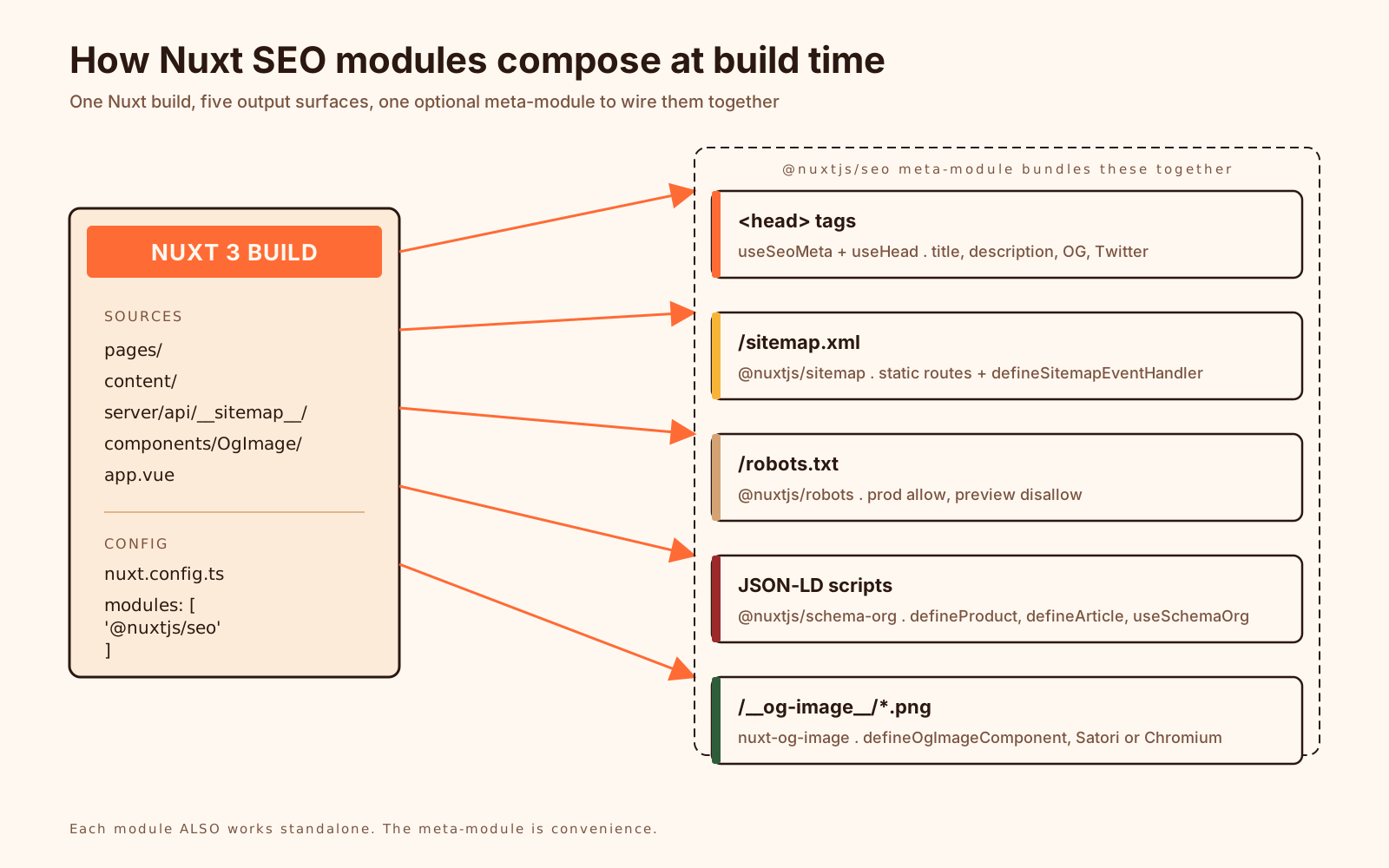
Nuxt 3 makes most of this pretty pleasant once you know which composable to reach for and which module to install. This piece walks through the four surfaces (metadata, Open Graph, sitemaps, structured data) in the order you actually configure them on a real production site, plus the one meta-module that bundles all of them so you don't have to think about it again.
The Two Head Composables, And When To Use Which
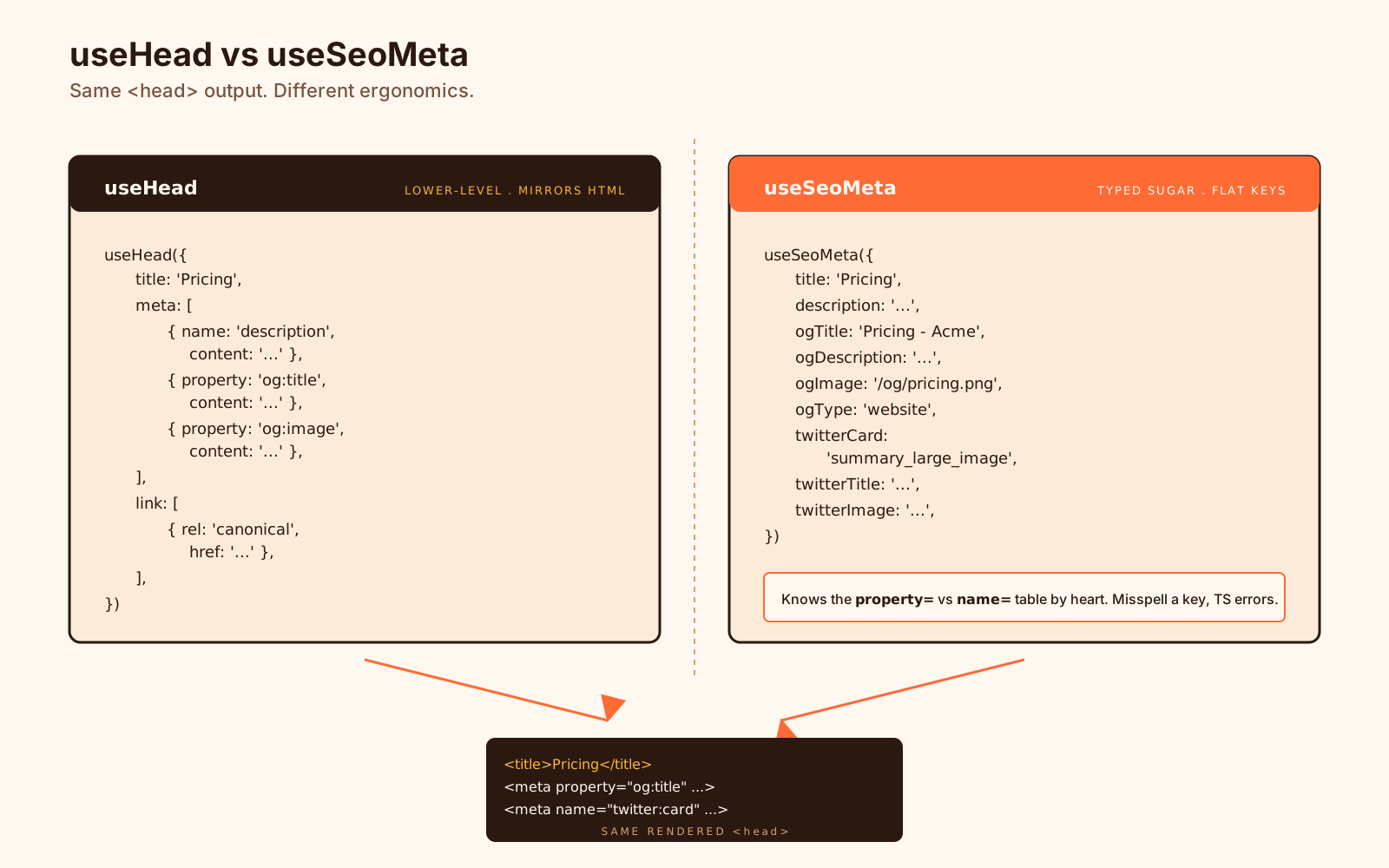
Nuxt 3 gives you two composables for setting head content: useHead and useSeoMeta. They overlap. Both end up writing tags to <head>, both are reactive, both work on the server and the client. The difference is the shape of what you pass in.
useHead is the lower-level one. You pass it an object whose keys mirror the HTML: title, meta (an array of { name, content } objects), link, script, style. It handles anything that goes in <head>.
useHead({
  title: 'Pricing',
  meta: [
    { name: 'description', content: 'Per-seat and team plans for Acme.' },
    { property: 'og:title', content: 'Pricing - Acme' },
    { property: 'og:image', content: 'https://acme.dev/og/pricing.png' },
  ],
  link: [
    { rel: 'canonical', href: 'https://acme.dev/pricing' },
  ],
})
useSeoMeta is the typed sugar on top. Every SEO meta tag becomes a flat key, with TypeScript autocomplete and the correct property vs name attribute chosen for you (Open Graph and Twitter spec disagree on which to use, and useSeoMeta knows the table by heart).
useSeoMeta({
  title: 'Pricing',
  description: 'Per-seat and team plans for Acme.',
  ogTitle: 'Pricing - Acme',
  ogDescription: 'Per-seat and team plans for Acme.',
  ogImage: 'https://acme.dev/og/pricing.png',
  ogType: 'website',
  twitterCard: 'summary_large_image',
  twitterTitle: 'Pricing - Acme',
  twitterDescription: 'Per-seat and team plans for Acme.',
  twitterImage: 'https://acme.dev/og/pricing.png',
})
That's the same head output, but you didn't have to remember that og:title uses property= and twitter:title uses name=. The keys are typed against the OG and Twitter specs, so misspelling ogtitle instead of ogTitle actually errors instead of silently writing nothing.
The rule I follow on every Nuxt project: useSeoMeta for SEO-flavoured tags (title, description, OG, Twitter, robots), useHead for everything else (canonical link, JSON-LD scripts, favicons, font preloads). They compose freely. Call both in the same page if you need.
One thing worth knowing: both composables are reactive. If you pass a function or a computed, the head will update when the value changes. That matters more than it sounds for product pages where the title depends on data you await.
const { data: product } = await useFetch(`/api/products/${slug}`)

useSeoMeta({
  title: () => product.value?.name ?? 'Loading',
  description: () => product.value?.shortDescription ?? '',
  ogImage: () => product.value?.heroImage,
})
The server render uses the awaited value; the client re-renders the head if anything changes. No mismatch, no flash of "Loading" in the title tab.
Site-Wide Defaults Belong In Nuxt Config, Per-Page Overrides Belong In Pages
The mistake I see in nearly every Nuxt SEO audit: every page calls useSeoMeta and sets the site name, the Twitter handle, the OG site name, the default OG image, all of it. The result is a lot of copy-paste and a lot of pages with subtly different defaults because someone forgot to update one of them.
The fix is two-layered. Site-wide defaults live in nuxt.config.ts under app.head. Page-specific overrides live in the page component.
export default defineNuxtConfig({
  app: {
    head: {
      titleTemplate: '%s - Acme',
      htmlAttrs: { lang: 'en' },
      meta: [
        { name: 'description', content: 'Acme builds tooling for design teams.' },
        { property: 'og:site_name', content: 'Acme' },
        { property: 'og:type', content: 'website' },
        { name: 'twitter:site', content: '@acmedev' },
        { name: 'twitter:card', content: 'summary_large_image' },
      ],
      link: [
        { rel: 'icon', type: 'image/svg+xml', href: '/favicon.svg' },
      ],
    },
  },
})
titleTemplate: '%s - Acme' is the small detail that pays for itself. Any page that sets title: 'Pricing' becomes <title>Pricing - Acme</title> automatically. If a page wants to opt out (e.g., the homepage), pass titleTemplate: null in that page's useSeoMeta.
Per-page overrides go in the page:
<script setup lang="ts">
useSeoMeta({
  title: 'Pricing',
  description: 'Per-seat and team plans for Acme. Free for solo developers.',
  ogImage: 'https://acme.dev/og/pricing.png',
})
</script>
No site name, no Twitter handle, no og:type. Those came from the config; the page only sets what differs.
For pages whose metadata depends on data you fetch (articles, products, profiles), definePageMeta is not the place for it. definePageMeta is for route-level things like middleware, layout, and custom meta you read elsewhere; it runs before <script setup> and cannot access fetched data. The right place is useSeoMeta inside <script setup>, after the data is awaited.
Open Graph And Twitter: The Bits That Trip Everyone
Most of the OG/Twitter card confusion comes down to three things.
The image must be an absolute URL. Social crawlers do not resolve relative paths. /og/pricing.png will silently fail on LinkedIn, Slack, X, Discord, Facebook, all of them. Either use a full URL (https://acme.dev/og/pricing.png) or use a module that resolves the site URL for you (@nuxtjs/seo does this).
The image must be reachable without authentication, without cookies, and without redirects. This sounds obvious. It is not. I've seen production sites where the OG image is behind a signed-url CDN that requires a token; the crawler hits it, gets a 403, and falls back to nothing. Test with curl -A 'facebookexternalhit/1.1' https://your.site/og/page.png before assuming the card is fine.
The image dimensions matter. Facebook and LinkedIn want at least 1200x630 (1.91:1). X is happy with the same if you use twitter:card: summary_large_image. Anything smaller and the platform either shrinks it to a tiny side thumbnail or refuses the card entirely. Setting og:image:width and og:image:height lets the platforms reserve space before fetching the image, which avoids a layout shift in the social card preview.
useSeoMeta({
  ogImage: 'https://acme.dev/og/pricing.png',
  ogImageWidth: 1200,
  ogImageHeight: 630,
  ogImageType: 'image/png',
  ogImageAlt: 'Acme pricing - Free, Team, and Enterprise plans side by side.',
})
Once you have static OG images working, the next problem is that every page wants a unique one. Doing this with a designer in Figma scales to about 20 pages, then becomes a part-time job. The dedicated module for this is nuxt-og-image. It generates OG images from Vue components at build time or on demand.
<script setup lang="ts">
const { data: post } = await useAsyncData(`post-${slug}`, () => fetchPost(slug))

defineOgImageComponent('BlogPost', {
  title: post.value?.title,
  author: post.value?.author,
  readTime: post.value?.readTime,
})
</script>
The BlogPost here is a Vue component you write under components/OgImage/, using the same Tailwind, the same fonts, and the same icons as the rest of your site. The module renders it to a PNG using Satori by default in every environment, with an opt-in Chromium renderer (powered by Playwright) when you need full browser fidelity, and serves it at /__og-image__/<route>.png. The first time I wired this up I regretted not doing it sooner. Every page suddenly had a card that looked like the brand.
Sitemaps Are Boring, Until They Aren't
A sitemap is just sitemap.xml listing every URL on your site you want crawlers to index, with optional metadata about when each URL changed and how often. Search engines do not strictly need one for small sites (they find pages by crawling links), but a sitemap helps for three reasons: it tells Google about pages that aren't linked from anywhere prominent, it surfaces deep pages faster than crawl alone, and the lastmod field gives Google a strong hint about when to re-crawl.
The Nuxt way to generate one is @nuxtjs/sitemap. Install it, add it to modules, and tell it your site URL.
export default defineNuxtConfig({
  modules: ['@nuxtjs/sitemap'],
  site: {
    url: 'https://acme.dev',
  },
})
That's enough for a sitemap of every prerendered route. The module hooks into Nitro's route discovery, finds your static pages, and serves /sitemap.xml automatically. If you visit it in dev, you'll see your pages/ directory rendered as a flat URL list, which is usually exactly what you want.
The interesting case is dynamic routes like /blog/[slug] and /products/[id]. The crawler can't guess these, and the module can't either unless you tell it. You hand it the list via a server route:
import type { SitemapUrlInput } from '@nuxtjs/sitemap/runtime'

export default defineSitemapEventHandler(async () => {
  const posts = await getAllPosts()
  return posts.map((post): SitemapUrlInput => ({
    loc: `/blog/${post.slug}`,
    lastmod: post.updatedAt,
    changefreq: 'monthly',
    priority: 0.7,
    images: post.heroImage ? [{ loc: post.heroImage }] : [],
  }))
})
Then wire it into nuxt.config:
export default defineNuxtConfig({
  modules: ['@nuxtjs/sitemap'],
  site: { url: 'https://acme.dev' },
  sitemap: {
    sources: ['/api/__sitemap__/urls'],
  },
})
The module merges that with the auto-discovered static routes and you get one combined sitemap.xml. For sites with more than 50,000 URLs (the per-file sitemap limit), the module splits automatically into a sitemap index. You don't have to do anything different.
A few field choices that come up:
changefreqis treated by Google as a hint, not a directive. Settinghourlyon a blog post that never changes won't make it crawled more often. Use realistic values or omit the field.priorityis relative within your site. It tells Google which of your own pages are more important, not how your pages rank against other sites. Setting everything to1.0is the same as setting everything to0.5. Differentiate.lastmodis the only field Google actually uses as a strong signal. Make sure it reflects the content last-modified, not the build time, or you'll burn your crawl budget on pages that haven't changed.
While you're in this section, ship a robots.txt. @nuxtjs/robots works the same way: install, add to modules, and either let it default to "allow everything except API routes" or customise per environment. The common production setup is "allow everything in production, disallow everything in preview deploys" so staging URLs don't end up indexed by accident.
export default defineNuxtConfig({
  modules: ['@nuxtjs/sitemap', '@nuxtjs/robots'],
  site: { url: 'https://acme.dev' },
  robots: {
    // In preview/staging, disallow all crawlers.
    disallow: process.env.NUXT_PUBLIC_ENV === 'production' ? [] : ['/'],
  },
})
Structured Data Turns Pages Into Rich Results
Structured data is the JSON-LD blob that describes the page using schema.org vocabulary. It's what makes a page eligible for the visually richer results in Google: product cards with price and stars, recipe carousels, FAQ accordions, breadcrumb trails, article author bylines. It does not guarantee any of those will appear (Google decides per query), but pages without it are not even in the pool.
A bare JSON-LD blob looks like this:
<script type="application/ld+json">
{
  "@context": "https://schema.org",
  "@type": "Product",
  "name": "Acme Widget Pro",
  "description": "The professional widget for design teams.",
  "image": "https://acme.dev/og/widget-pro.png",
  "brand": { "@type": "Brand", "name": "Acme" },
  "offers": {
    "@type": "Offer",
    "price": "49.00",
    "priceCurrency": "USD",
    "availability": "https://schema.org/InStock"
  }
}
</script>
You can hand-write that and inject it with useHead({ script: [{ type: 'application/ld+json', innerHTML: JSON.stringify(blob) }] }). People do, especially for simple sites with one or two schema types. It gets unwieldy fast though, because the schema.org vocabulary has hundreds of types, the @type fields nest, and you almost always want the same Organization and WebSite blobs on every page tied to per-page Product or Article blobs.
@nuxtjs/schema-org (also from the SEO-modules ecosystem) is the heavy machinery. It gives you typed defineX helpers per schema type, automatically links them into a single graph, and merges site-wide definitions with per-page ones.
<script setup lang="ts">
useSchemaOrg([
  defineOrganization({
    name: 'Acme',
    logo: '/logo.png',
    sameAs: ['https://twitter.com/acmedev', 'https://github.com/acme'],
  }),
  defineWebSite({ name: 'Acme' }),
])
</script><script setup lang="ts">
const { data: product } = await useFetch(`/api/products/${slug}`)
useSchemaOrg([
defineProduct({
name: product.value?.name,
description: product.value?.description,
image: product.value?.heroImage,
offers: [{
price: product.value?.price,
priceCurrency: 'USD',
availability: product.value?.inStock ? 'InStock' : 'OutOfStock',
}],
aggregateRating: product.value?.rating && {
ratingValue: product.value.rating.average,
reviewCount: product.value.rating.count,
},
}),
defineBreadcrumb({
itemListElement: [
{ name: 'Home', item: '/' },
{ name: 'Products', item: '/products' },
{ name: product.value?.name, item: `/products/${slug}` },
],
}),
])
</script>The module emits a single <script type="application/ld+json"> with a @graph array tying everything together. Organization, WebSite, Product, BreadcrumbList: they all reference each other by @id, which is how Google's parser stitches them into a knowledge-graph entry.
For blog posts, swap defineProduct for defineArticle:
useSchemaOrg([
  defineArticle({
    headline: post.value?.title,
    image: post.value?.coverImage,
    datePublished: post.value?.publishedAt,
    dateModified: post.value?.updatedAt,
    author: { name: post.value?.author.name, url: post.value?.author.profileUrl },
  }),
])
A few things worth knowing:
- Test in the Rich Results Test, not the schema validator. Schema.org's own validator is permissive. It tells you whether your JSON-LD is syntactically valid. Google's Rich Results Test tells you whether the JSON-LD is eligible for a specific rich result, which is the only thing you actually care about. They disagree often.
Productschema requiresoffersfor the price-and-availability rich card. Without it, you get the plain blue link. With it, you get the price, availability, and (if you provideaggregateRating) the star rating. The fields Google needs are not always the ones the schema marks as required, so read the Google search-gallery docs for the specific rich result you want.- FAQ rich results were restricted in August 2023. Google now only shows them for a small allow-list of well-known, authoritative government and health domains. If you've been adding
FAQPageschema and not seeing it appear, that's why. The schema is still valid; the rich card is just not eligible for most domains anymore.
The Meta-Module That Does All Of This At Once
Reading the sections above, you might have noticed they pull in three or four separate modules (@nuxtjs/sitemap, @nuxtjs/robots, nuxt-og-image, @nuxtjs/schema-org), each with their own config. For a production site you usually want all of them.
@nuxtjs/seo is the meta-module that wraps the whole set. Installing it gives you sitemap, robots, schema-org, og-image, link-checker, and a shared site config in one go.
export default defineNuxtConfig({
  modules: ['@nuxtjs/seo'],
  site: {
    url: 'https://acme.dev',
    name: 'Acme',
    description: 'Acme builds tooling for design teams.',
    defaultLocale: 'en',
  },
})
Every module in the bundle picks up the site.* config automatically. You set the URL once, and the sitemap absolutises its URLs, the OG image module uses it for fallback hosts, schema-org uses it for @id fields, robots uses it to identify itself. Everything stays in sync.
You can still configure each sub-module individually under its own key (sitemap: {...}, robots: {...}, schemaOrg: {...}). The meta-module is opinionated about sensible defaults but doesn't lock you in.
For a brand-new Nuxt site, this is the lowest-friction path: install @nuxtjs/seo, set site.url, write useSeoMeta in your pages, and you have ~80% of the SEO surface wired up before lunch. The remaining 20% (page-specific structured data, dynamic sitemap sources, OG image templates) is where you spend the second day.
A Quick Sanity Checklist Before You Ship
Before any production deploy, walk a representative URL through this list:
- View source and confirm
<title>,<meta name="description">, canonical link, and one OG image tag are present and correct. If they're missing, your composables aren't running on the server (probably wrapped in a<ClientOnly>somewhere they shouldn't be). curl -A 'facebookexternalhit/1.1' <url>and grep forog:. If the response differs from what your browser sees, you have a user-agent split, usually because something is gated on cookies or auth.- Paste the URL into the LinkedIn Post Inspector, X Card Validator, and Facebook Sharing Debugger. Each platform caches aggressively; the debuggers force a re-crawl when you change OG images.
- Paste the URL into Google Rich Results Test. It tells you which rich result the JSON-LD is eligible for and which fields are missing.
- Fetch
/sitemap.xmland confirm the URLs are absolute, thelastmodreflects content changes, and there are nolocalhostURLs (this happens more than you'd expect whensite.urlisn't set). - Fetch
/robots.txtand confirm the production site is not blocked. The classic deploy bug is leaving the preview-environmentdisallow: /in production. - Search Console URL Inspection tool on three or four representative URLs after the deploy. "Page indexed" is what you want.
Discovered - currently not indexedwith no error usually means Google is rate-limiting you on a low-traffic domain;Crawled - currently not indexedusually means the content looks thin or duplicate.
This is not glamorous work. None of it makes your Lighthouse score go up. But it's the difference between a site that ships and a site that gets found.
The One Mental Model
Every SEO surface in Nuxt (meta tags, OG cards, sitemap, robots, structured data) is just the framework telling crawlers what it already knows about your pages. The composables and modules above are mostly about making sure that information is correct, absolute, and consistent across every page. Get those three things right, install @nuxtjs/seo, and the rest is content.