
There is a tired joke in frontend circles: the hardest thing in web development is building a <select>. It keeps surviving because it keeps being true. The native one is impossible to style consistently across Windows, macOS, and iOS. You cannot put icons inside the option. You cannot reshape the popup. So every team eventually rebuilds the dropdown out of <div>s, and that is where accessibility quietly dies.
// You will see this in almost every codebase. It is not a UI component.
// It is an interactive black hole.
<div className="dropdown" onClick={() => setOpen(true)}>
  <span>Select an option</span>
  {open && (
    <div className="menu">
      <div onClick={() => pick('A')}>Option A</div>
      <div onClick={() => pick('B')}>Option B</div>
    </div>
  )}
</div>
A keyboard user cannot focus this thing. A screen reader sees an unlabeled <div> group and shrugs. The mouse-with-pixel-perfect-vision user is the only happy customer. Let's walk through what it actually takes to fix that.
Why <div onClick> Is The Bug
When you put an onClick on a <div>, the browser does not know it is a button. There is no role to announce, no Enter/Space activation, no focus ring without tabindex. To rebuild what <button> gives you for free, you have to add all of it back by hand:
<div
  role="button"
  tabIndex={0}
  onClick={activate}
  onKeyDown={(e) => {
    if (e.key === 'Enter' || e.key === ' ') {
      e.preventDefault(); // Space scrolls the page by default
      activate();
    }
  }}
>
  Submit
</div>
Half a dozen lines for one fake button. And you still have to remember aria-disabled versus disabled, focus-visible styling, and the fact that Space activates on keyup while Enter activates on keydown for native buttons. The fix is almost always: stop. Use <button type="button">. The native element is the accessibility solution.
The same applies to links versus buttons. If clicking it changes the URL, it is an <a href>. If clicking it changes state on the page, it is a <button>. Mixing them is one of the top three sources of broken keyboard flows I see in audits.
Modals And The Focus Trap
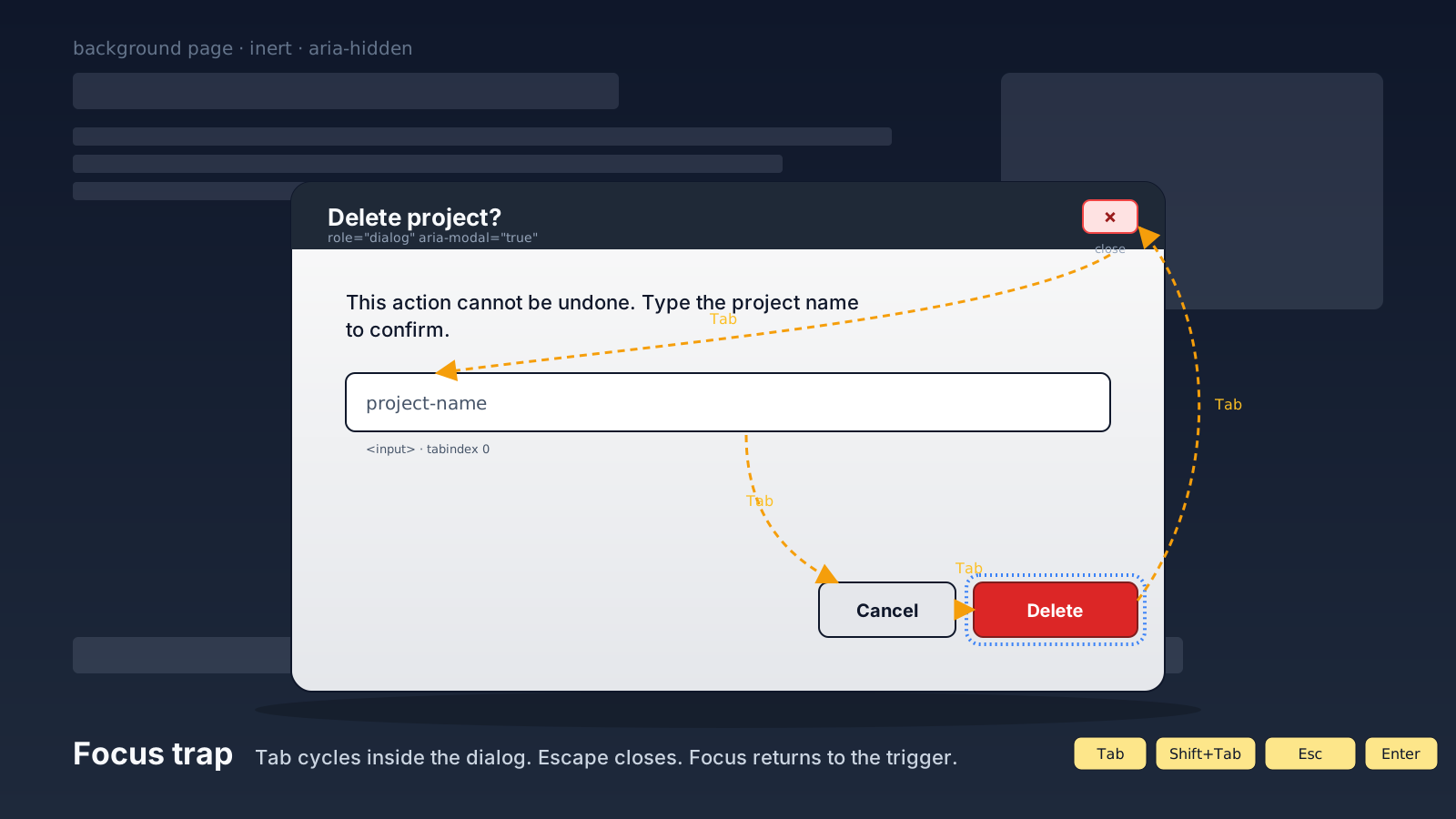
The dialog is where keyboard users get lost most often. Here is what the WAI-ARIA Authoring Practices Guide expects from a real modal:
- When it opens, focus moves into the dialog (usually the first focusable element, or a labeled heading with
tabindex="-1"). TabandShift+Tabcycle through focusable elements inside the dialog and never escape it.Escapecloses the dialog.- When it closes, focus returns to the element that opened it.
- Background content is inert —
inertattribute oraria-hidden="true"on siblings — so screen readers do not read the page behind the overlay.
Miss any one of those and a keyboard user can Tab past your "Confirm" button, land on a link in the page underneath, hit Enter, and navigate away mid-checkout. The first time that happens with a real customer you stop treating focus traps as optional.
The good news is the platform finally has a real answer. The native <dialog> element handles most of this for you when you call showModal():
const ref = useRef<HTMLDialogElement>(null);

return (
  <>
    <button onClick={() => ref.current?.showModal()}>Open</button>
    <dialog ref={ref}>
      <form method="dialog">
        <h2>Delete project?</h2>
        <button value="cancel">Cancel</button>
        <button value="confirm">Delete</button>
      </form>
    </dialog>
  </>
);
showModal() traps focus, closes on Escape, renders in the top layer above everything else, and returns focus to the trigger when it closes. Not perfect — you still want to manage the initial focus target carefully, and the backdrop behavior takes some styling — but it removes most of the manual JavaScript that used to live in every codebase.
ARIA For Tabs Is A Whole Spec
A tablist looks simple and is not. The roles and attributes are spelled out in the APG and you have to wire all of them:
<div role="tablist" aria-label="Account settings">
  <button
    role="tab"
    id="tab-profile"
    aria-selected={tab === 'profile'}
    aria-controls="panel-profile"
    tabIndex={tab === 'profile' ? 0 : -1}
  >
    Profile
  </button>
  <button
    role="tab"
    id="tab-billing"
    aria-selected={tab === 'billing'}
    aria-controls="panel-billing"
    tabIndex={tab === 'billing' ? 0 : -1}
  >
    Billing
  </button>
</div>
<div role="tabpanel" id="panel-profile" aria-labelledby="tab-profile" hidden={tab !== 'profile'}>...</div>
<div role="tabpanel" id="panel-billing" aria-labelledby="tab-billing" hidden={tab !== 'billing'}>...</div>
The keyboard behavior is the part people forget. Tab should move into the active tab and then into the panel — not from tab to tab. Switching tabs uses ArrowLeft / ArrowRight (or ArrowUp / ArrowDown for vertical tablists), with Home / End jumping to first and last. That is the "roving tabindex" pattern: only one tab has tabindex=0 at a time, the rest are -1, and arrow keys move the active one.
You also have to decide between automatic activation (focus changes the panel) and manual activation (focus moves but you press Enter to activate). The APG recommends automatic for cheap panels and manual when changing tabs is expensive — exactly the kind of detail you get wrong if you are inventing this from scratch.
Stop Reinventing The Primitives
Reading the last three sections back, you might notice something: building any one of these correctly is a multi-day project. Building all of them, keeping them in sync with the APG when guidance changes, and supporting RTL, mobile screen readers, and Windows High Contrast mode — that is a full-time job, and it is not the job you were hired to do.
This is exactly what headless component libraries exist for. They give you the keyboard handling, focus management, ARIA attributes, and edge cases as unstyled React components, and you bring the CSS:
- Radix UI Primitives. The most popular pick for React. Tightly maintained, follows the APG closely, has excellent TypeScript types.
@radix-ui/react-dialog,@radix-ui/react-dropdown-menu,@radix-ui/react-tabs. - React Aria (Adobe). The deepest a11y story of any JS library — hooks like
useDialog,useMenu,useTabsthat have been validated against actual screen readers across platforms. Pairs with React Aria Components for ready-made shells. - Headless UI (Tailwind Labs). Smaller surface, designed to pair with Tailwind. Good for the common cases.
- Ark UI. Same design as Radix but framework-agnostic — works in React, Vue, and Solid from one core.
Picking one is rarely wrong. Inventing your own from scratch when you have shipping deadlines is almost always wrong.
Test With The Keyboard, Not The Mouse
The fastest accessibility test fits in five minutes per page. Unplug your mouse. Walk through the page using only Tab, Shift+Tab, Enter, Space, Escape, and the arrow keys. Things you should be able to do without touching the mouse:
- Reach every interactive element in a logical order.
- See a clear focus ring on every focused element.
- Open and close every modal, menu, and dropdown.
- Submit and cancel forms.
- Skip past long lists with a "skip to content" link.
If you cannot, the page is broken for keyboard users — and by extension for anyone using a screen reader, switch device, or voice control. None of those users get a "sorry, hold on, let me grab the mouse" option.
After the keyboard pass, run automated checks (axe DevTools, Lighthouse) for the cheap wins, and at least once before launch pull up VoiceOver on macOS or NVDA on Windows and listen to your own page. The first time you do this it is uncomfortable. It is supposed to be. That discomfort is the bug bar your real users live with every day.
A One-Sentence Mental Model
Accessibility for interactive components is not styling and it is not vibes — it is a contract with assistive tech (roles, states, focus order, keyboard) and the tightest way to keep that contract is to use the native element when one exists, the headless library when it does not, and to test the result with your hands off the mouse.