Accessibility has a marketing problem. People hear "ARIA" and "WCAG", picture a 200-page audit, and put the topic into the "later" pile. Then later arrives, the app is built, and retrofitting accessibility costs 5x what it would have on day one.
The truth is friendlier than the reputation. Most accessibility wins come from a small set of habits — semantic HTML, keyboard support, focus management, a few ARIA attributes used correctly, and a couple of headless libraries that handle the genuinely tricky parts. Wire them in from the first commit and you almost never have to think about accessibility again.
This article is the practical version: what to do, when, and what to reach for instead of writing a "custom dropdown that nobody can tab through".
The Cheapest Win: Semantic HTML
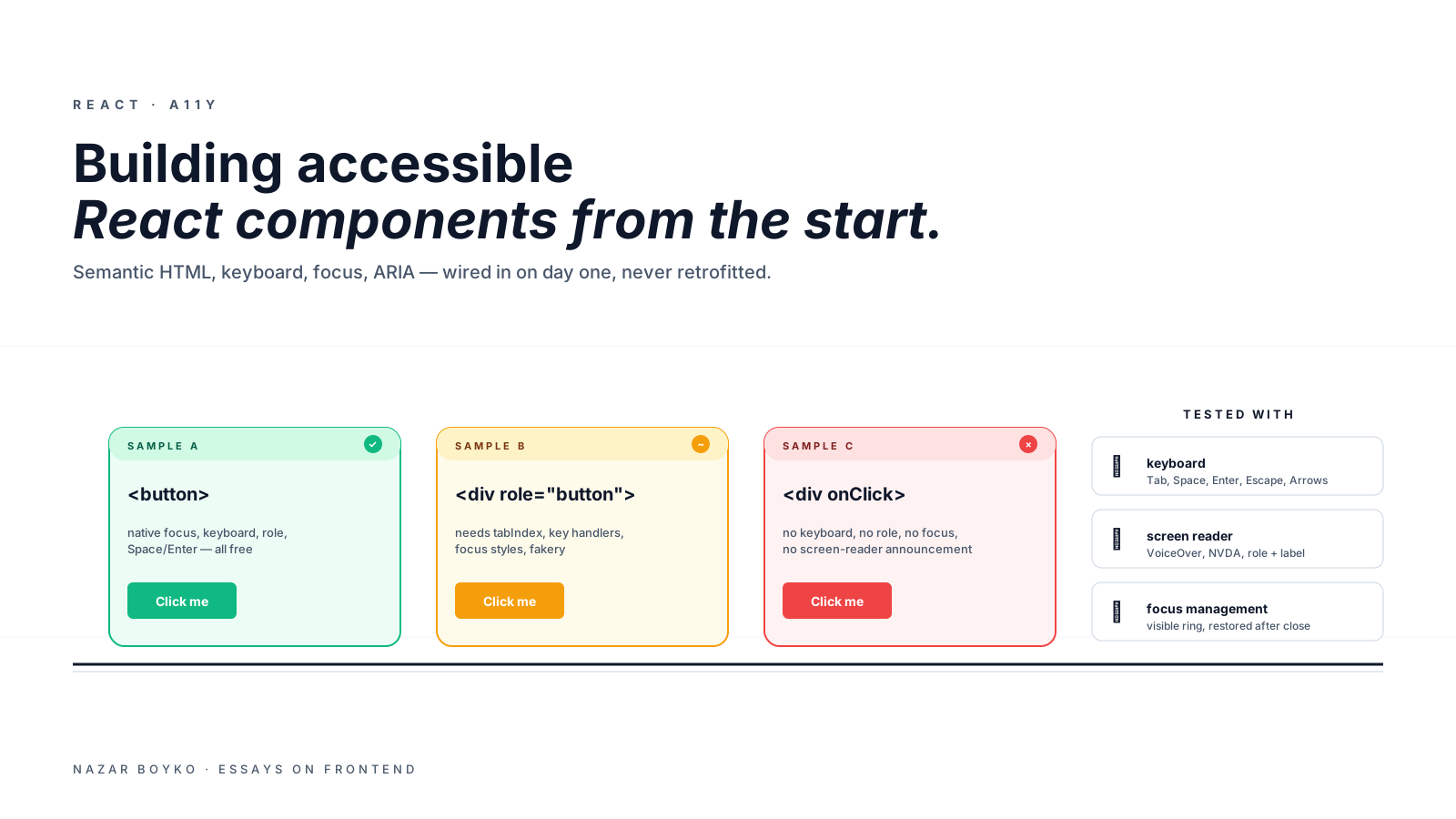
Before any React, before any ARIA, write the right HTML element. The browser already knows how <button>, <a>, <form>, <input>, <select>, <dialog>, <details> work. Screen readers know how to announce them. Keyboards know how to focus them. ARIA only exists to fill the gaps when no semantic element fits.
// ❌ A "button" that's not a button
<div className="btn" onClick={handleClick}>Click me</div>

// ✅ A button that's actually a button
<button onClick={handleClick}>Click me</button>
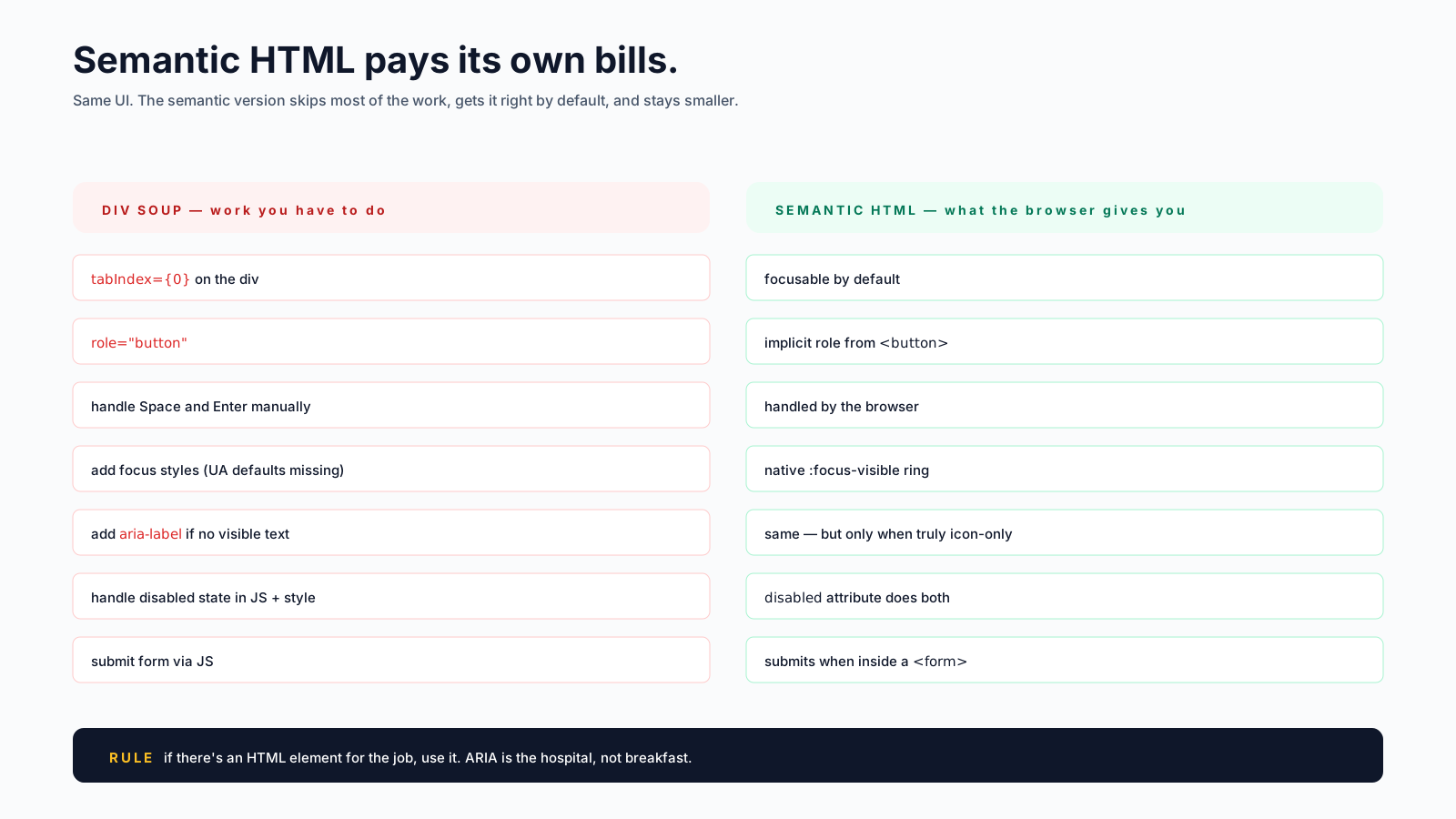
The <div> version: not focusable by keyboard, not announced as "button" by screen readers, doesn't trigger on Space or Enter, doesn't ship with a default focus ring. To make it accessible you'd add role="button", tabIndex={0}, key handlers for Space and Enter, focus styles. That's 30 lines to recreate what <button> gives you for free.
The same pattern repeats across the language. <a href="..."> for navigation, never <div onClick>. <input type="checkbox"> not a clickable square. <dialog> for modals (with <dialog> finally widely supported in 2026, this is genuinely the best option).
The one-line summary: if there's an HTML element for the job, use it. ARIA is the hospital, not breakfast.
Keyboard Support, By Default
Every interactive element should work without a mouse. The non-negotiables:
- Tab moves focus to the next focusable element. Visible focus ring, please.
- Enter activates buttons and submits forms.
- Space activates buttons and toggles checkboxes.
- Arrow keys navigate inside composite widgets (menus, listboxes, tabs).
- Escape closes modals, dropdowns, command palettes.
If you're using semantic HTML, the first three come for free. The last two are where you usually have to write code — which is one of the main reasons a headless component library is worth its weight.
// A modal that closes on Escape
function Modal({ open, onClose, children }) {
  useEffect(() => {
    if (!open) return;
    const onKey = (e) => e.key === 'Escape' && onClose();
    window.addEventListener('keydown', onKey);
    return () => window.removeEventListener('keydown', onKey);
  }, [open, onClose]);

  if (!open) return null;
  return <div role="dialog" aria-modal="true">{children}</div>;
}
Five lines. That's the entire keyboard contract for a basic modal — Escape closes it. For anything more complex (focus trapping, restoring focus on close, click-outside), use a library. We'll get there in a minute.
Focus Management
Focus is the screen reader's cursor. Where focus is, that's what the user is "looking at". When you open a modal, focus should move into the modal. When you close it, focus should return to the element that opened it. When a list item is deleted, focus should move to a sibling — not vanish into the body.
function DialogExample({ open, onClose }) {
  const triggerRef = useRef(null);
  const dialogRef = useRef(null);

  useEffect(() => {
    if (open) {
      dialogRef.current?.focus();      // move into the dialog
    } else {
      triggerRef.current?.focus();     // return to the trigger
    }
  }, [open]);

  return (
    <>
      <button ref={triggerRef} onClick={() => setOpen(true)}>Open</button>
      {open && (
        <div ref={dialogRef} tabIndex={-1} role="dialog" aria-modal="true">
          <h2>Confirm</h2>
          <button onClick={onClose}>Close</button>
        </div>
      )}
    </>
  );
}
tabIndex={-1} makes the dialog programmatically focusable without putting it in the tab order. After the user closes the dialog, focus jumps back to the button that opened it, instead of dropping to the top of the page.
Focus trapping (preventing Tab from escaping the modal) is the next level — and the moment to reach for focus-trap-react or a headless library that includes it.
ARIA In Three Sentences
ARIA roles, states, and properties communicate semantics that HTML can't. The whole spec is large; the part you need 95% of the time is small:
rolesays what an element is when no semantic element fits (role="dialog",role="alert",role="status").aria-label/aria-labelledbyname an element for screen readers when there's no visible label.aria-describedbylinks an element to additional descriptive text (error messages, hint text).aria-expanded,aria-selected,aria-checked,aria-currentconvey state of toggles, tabs, checkboxes, and current page.aria-liveannounces dynamic content updates ("3 items added to cart").aria-hidden="true"hides decorative elements from screen readers (icons, divider lines).
The first rule of ARIA is don't use ARIA. The second is if you must use ARIA, use it correctly. Wrong ARIA is worse than no ARIA — a role="button" on a div that doesn't handle Space/Enter is announcing a contract you don't fulfil.
// Common patterns done right
<button aria-label="Close" onClick={onClose}>×</button>

<input id="email" aria-describedby="email-error" />
<span id="email-error" role="alert">Invalid email</span>

<button aria-expanded={isOpen} onClick={() => setIsOpen(!isOpen)}>
  Menu
</button>
The icon-only <button> gets aria-label because the visual text is just "×". The error span uses role="alert" so screen readers announce it the moment it appears. The toggle button uses aria-expanded so assistive tech knows whether the menu is open without rendering its contents.
Reach For Headless Libraries Earlier
Custom dropdowns, comboboxes, date pickers, modal dialogs with focus trapping — these are hard to get right. The keyboard-interaction patterns are spelled out in the WAI-ARIA Authoring Practices Guide and they're a lot of work to implement from scratch.
The pragmatic answer is headless components. They give you the accessibility, focus, keyboard, ARIA, and state machine — and let you style everything yourself. The strong choices in 2026:
- Radix UI — primitives for menus, dialogs, popovers, tabs, comboboxes, etc. The most popular and probably the most polished.
- React Aria / React Spectrum (Adobe) — extremely thorough; the underlying hooks of
react-ariaare excellent if you want full control. - Headless UI — from Tailwind Labs; smaller surface, simpler to learn, focused on common patterns.
- Ark UI — newer, similar shape to Radix, framework-portable.
import * as Dialog from '@radix-ui/react-dialog';

function ConfirmDialog({ open, onOpenChange, onConfirm }) {
  return (
    <Dialog.Root open={open} onOpenChange={onOpenChange}>
      <Dialog.Trigger asChild>
        <button>Delete</button>
      </Dialog.Trigger>
      <Dialog.Portal>
        <Dialog.Overlay className="dialog-overlay" />
        <Dialog.Content className="dialog-content">
          <Dialog.Title>Are you sure?</Dialog.Title>
          <Dialog.Description>This can't be undone.</Dialog.Description>
          <button onClick={onConfirm}>Confirm</button>
          <Dialog.Close>Cancel</Dialog.Close>
        </Dialog.Content>
      </Dialog.Portal>
    </Dialog.Root>
  );
}
Focus trap, Escape to close, return focus to trigger, ARIA roles and labels, body scroll lock, portal placement — all of it handled. You write the styles, the library writes the hard parts. Trying to reinvent this in plain React is a great way to ship a dialog that nobody using a screen reader can escape.
Forms, Specifically
Forms are the single most accessibility-sensitive UI. The minimum bar:
- Every input has a
<label>linked byhtmlFor(or wrapped around the input). - Required fields get
aria-required="true"(a red asterisk is visual-only). - Errors get
role="alert"so they're announced as they appear. - The input gets
aria-invalid={hasError}so the error state is programmatic. - The error message is linked via
aria-describedby.
<div>
  <label htmlFor="email">Email</label>
  <input
    id="email"
    type="email"
    aria-required="true"
    aria-invalid={!!error}
    aria-describedby={error ? 'email-err' : undefined}
  />
  {error && <span id="email-err" role="alert">{error}</span>}
</div>
Five lines of attributes that take a form from "looks fine" to "actually usable for everyone". Worth it every time.
Testing What You Built
A few cheap habits that catch the bulk of issues:
- Tab through your page with the keyboard only. Can you reach every interactive element? Can you see where focus is? Can you complete the main flows?
- Run axe DevTools. It's a free browser extension. Each scan flags the obvious issues with explanations.
- Run Lighthouse. Its accessibility score isn't comprehensive but catches more than you'd expect.
- Try VoiceOver / NVDA. Even ten minutes a month listening to your app dramatically changes how you write components. VoiceOver is built into macOS (Cmd+F5); NVDA is free for Windows.
For automated testing in your codebase, eslint-plugin-jsx-a11y catches a surprising number of common mistakes at lint time. @testing-library/jest-dom adds matchers like toHaveAccessibleName, toBeInvalid, and toHaveAttribute('aria-invalid', 'true') for ARIA-state assertions. None of this replaces real testing, but it raises the floor.
The Habits That Stick
If you build the following five into your default React workflow, you'll never have to "do an accessibility pass":
- Reach for the semantic HTML element first, every time.
- Make every interactive thing keyboard-reachable and operable.
- Manage focus on open / close / dynamic insert.
- Use the small ARIA vocabulary correctly: roles, labels, expanded, alert, live.
- Reach for Radix / React Aria / Headless UI for compound widgets.
Accessibility isn't an extra feature you bolt on. It's a property of code that was written carefully in the first place. The work to make a button accessible is, exactly, "writing <button> instead of <div>". Most of it is that easy. The rest is reaching for libraries that already solved the genuinely hard parts.