A user pings you with the standard message. "The app feels slow." You open the Network tab, every request finishes in 50ms, your CDN is healthy, the API is healthy, and you stare at the screen wondering what they could possibly mean. So you reach for their device, click the same button they clicked, and there it is — that telltale half-second pause where the page is technically alive but unwilling to respond. The network had nothing to do with it.
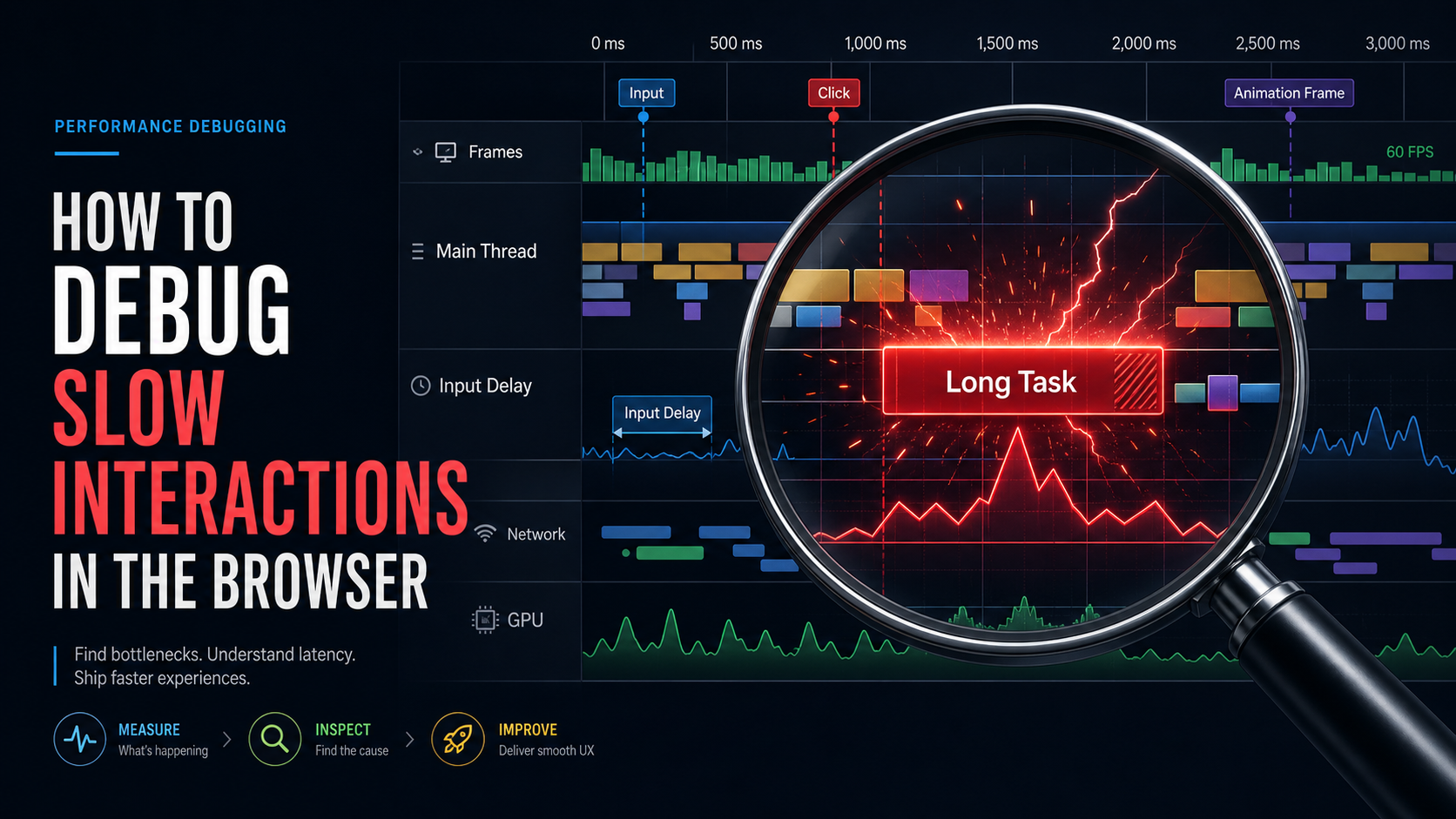
Slow interactions live on the main thread. The Network panel cannot see them. To find and fix them you have to use a different tool, and once you learn to read it, the diagnosis goes from guesswork to evidence in about ten minutes.
Start With An Honest Recording
The Chrome DevTools Performance panel is the workhorse here. After the brief detour into "Performance Insights" a couple of years ago, the unified panel is back as of Chrome 129 and it is the right place to start.
A useful recording has three properties:
- CPU throttling on. Set it to 4× or 6× slowdown. Your dev machine is hiding the bug.
- Network throttling matched to your audience. "Slow 3G" or "Fast 3G" is reasonable; if you have RUM data, mirror the median of the slow cohort.
- A real interaction, not just a load. Press record, perform the slow action, stop. Recording too long buries the signal.
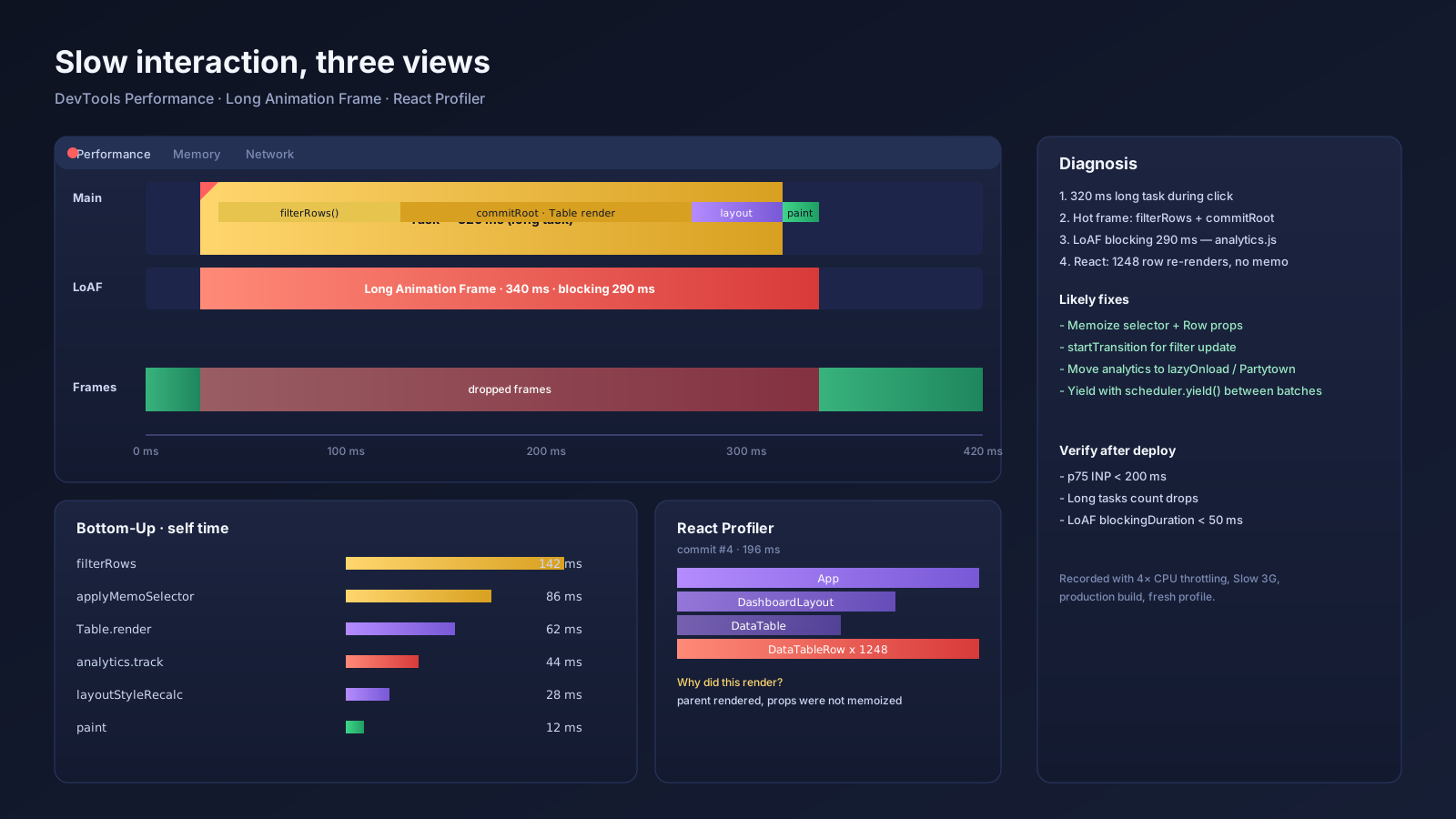
The default trace shows the main thread in the center, with a flame chart of every task the browser performed during the recording. Long tasks — anything over 50ms — appear with a red corner triangle. They are not your enemy, but they are the place where everything bad starts.
Read The Flame Chart Like A Stack Trace
The flame chart looks intimidating until you realise it is an upside-down call stack with a time axis. The bar at the top of a stack is the function that is currently running; the bars beneath it are the functions that called it. Wider bars took longer.
The colors are a quick triage:
- Yellow (Scripting): JavaScript executing. Big yellow blocks mean too much code is doing too much work synchronously.
- Purple (Rendering): Style and layout calculation. Big purple blocks usually mean layout thrashing — JavaScript reading and writing layout properties in a loop, forcing the browser to recalculate over and over.
- Green (Painting and compositing): Pixels going to the screen. Rarely the real bottleneck, but worth knowing.
- Grey (Idle and system): Time the page was free. You want more of this near user interactions, not less.
Click on a long yellow task. The "Bottom-Up" tab below shows the actual hot functions, sorted by self time. The "Call Tree" shows the same data top-down. Both views accept a "match function name" filter, which is how you find the user-code function buried under hundreds of framework frames.
A common pattern in React apps: the long task is dominated by a single call to commitRoot or performWorkOnRoot, with one expensive component below it eating most of the time. That component is your suspect. The Performance panel cannot tell you why it rendered, only that it did and that it took too long.
Long Animation Frames Cut Through The Noise
The legacy Long Tasks API flags anything over 50ms, which is coarse — by the time a task is long, you are already failing INP. The newer Long Animation Frames (LoAF) API is much more useful. Instead of measuring opaque tasks, it traces an entire frame and reports per-script timing, style and layout time, and the rendering blocking it.
You can subscribe to it from your own code and ship the data to your RUM:
const observer = new PerformanceObserver((list) => {
  for (const entry of list.getEntries()) {
    if (entry.duration < 100) continue;
    navigator.sendBeacon('/loaf', JSON.stringify({
      duration: entry.duration,
      blockingDuration: entry.blockingDuration,
      renderStart: entry.renderStart,
      styleAndLayoutStart: entry.styleAndLayoutStart,
      scripts: entry.scripts.map(s => ({
        name: s.name,
        duration: s.duration,
        invoker: s.invoker,
        sourceURL: s.sourceURL,
      })),
    }));
  }
});
observer.observe({ type: 'long-animation-frame', buffered: true });
In DevTools, LoAF entries appear automatically on the Performance timeline as a new track. The valuable bit is that they tell you which script (with URL and function name) contributed how much, so when you see "230ms blocking duration on analytics.js" you do not have to guess.
This is the API to reach for when you are debugging INP regressions in the field. Long tasks tell you the main thread was busy; LoAF tells you what was busy and which paint it blocked.
Find Out Why React Re-Rendered
The native Performance panel shows you that React did 280ms of work. It does not tell you which of your components rendered, or why. For that you need the React Developer Tools Profiler tab.
Two settings are worth turning on the first time you open it:
- Record why each component rendered while profiling. This adds a "Why did this render?" entry to every commit.
- Highlight updates when components render. Optional but illuminating — it draws colored borders around components on every render. Watching the borders flash while you click around tells you instantly when an entire tree is re-rendering for no reason.
A typical session goes like this. You record, click the slow button, stop. The profiler shows a flame graph of each commit. You hover the widest commit and see "Hook 2 changed" on a leaf component, plus "Parent re-rendered" on the dozen components above it. Tracing up the tree, you find that a global Zustand or Redux store changed a single field, but the selector is not memoized, so the entire subscriber tree re-renders on every keystroke.
That is the kind of bug that is invisible in the native Performance panel and obvious in the React Profiler.
Fix Patterns That Map To Real Causes
The fixes for slow interactions tend to fall into a small set of patterns, each tied to a specific shape of evidence.
Wide yellow block on user code. Yield the work. await scheduler.yield() (or setTimeout(0) as a fallback) between phases lets the browser paint between chunks. For React state updates that do not need to be urgent, wrap them in startTransition.
Wide purple block during scripting. Layout thrashing. Look for code that reads offsetTop, getBoundingClientRect, or clientHeight inside a loop that also writes to layout. Batch reads first, writes after, or use requestAnimationFrame for the writes.
Many small commits in the React Profiler, all on the same path. Selectors are not memoized, or props are recreated on every render. useMemo, useCallback, and React.memo solve the immediate issue; restructuring state colocates the fix.
A single LoAF entry pointing to a third-party script. The script is doing serious work on the main thread. Either move it out (Partytown, a worker) or load it with next/script strategy lazyOnload so it does not compete with first-paint or first interactions.
Slow renders with a long .filter().map() chain. Move the computation to a worker, or pre-compute on the server. JavaScript array methods are not the problem; doing thousands of them on every keystroke is.
Verify With A Repeatable Trace
The temptation is to make the fix, refresh, click around, and declare victory because it "feels better." That is not a measurement. Record before and after under the same throttling profile, and compare:
- Long task count and total duration. Should drop.
- Largest LoAF blocking duration around the interaction. Should drop, ideally below 50ms.
- Number of React commits. Should drop, especially for renders that are not paint-relevant.
- INP, if you have RUM. Should drop within a day or two of deploying — RUM has a smoothing window because it reports the p75 over a rolling period.
When the field number moves, you have actually fixed it. When only the lab number moves, you have probably fixed a problem; verify with users on the slow cohort that they feel the difference.
What Not To Get Distracted By
A few things look damning in a trace and usually are not.
GC pauses appear as spiky purple-ish bars in the chart. They are real, but they are also a symptom of allocation churn — too many objects created per frame — not the root cause. Fix the churn (object pools, fewer closures in hot paths) and GC drops out as a side effect.
The dev build is slow on purpose. React, Next.js, and Vite all do extra work in development that they skip in production. If you are debugging a production-like issue, throw a production build behind your local dev server (next build && next start) before profiling. Otherwise you are chasing dev-only overhead.
DevTools itself is overhead. Recording with the Performance panel open adds a small constant cost. It rarely changes which call is slowest, but it can shift absolute numbers, so do not panic if your "200ms task" becomes "180ms" with DevTools closed and a fresh tab.
The skill is reading the trace, not memorising fixes. Once you can look at a flame chart, find the wide bar, click into it, and read up the call stack to your component, you have the superpower. The browser is doing the same things every time; you are just learning to listen.