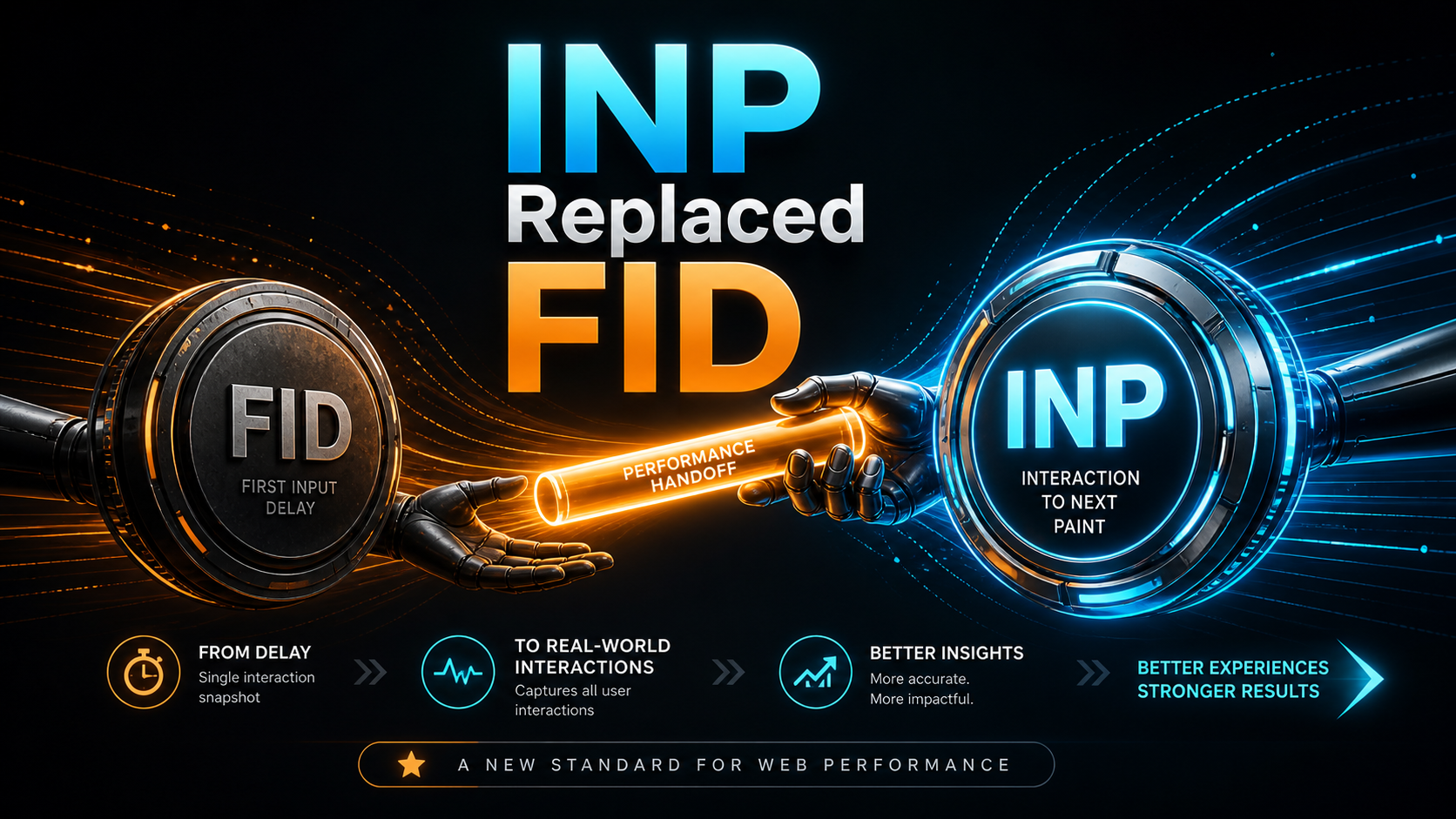
For years, the responsiveness leg of Core Web Vitals was First Input Delay. FID was a friendly metric — gentle, even. It only watched the very first interaction on the page, and it only measured the time from input to the moment the browser started running the handler. It said nothing about what the handler actually did, nothing about anything that happened after the page warmed up. A site could pass FID with flying colors and still feel like a brick the moment you tried to use it.
On March 12, 2024, Google officially replaced FID with Interaction to Next Paint (INP). If you have not changed how you measure or optimize responsiveness since then, your search ranking and your users have probably already noticed.
What INP Actually Measures
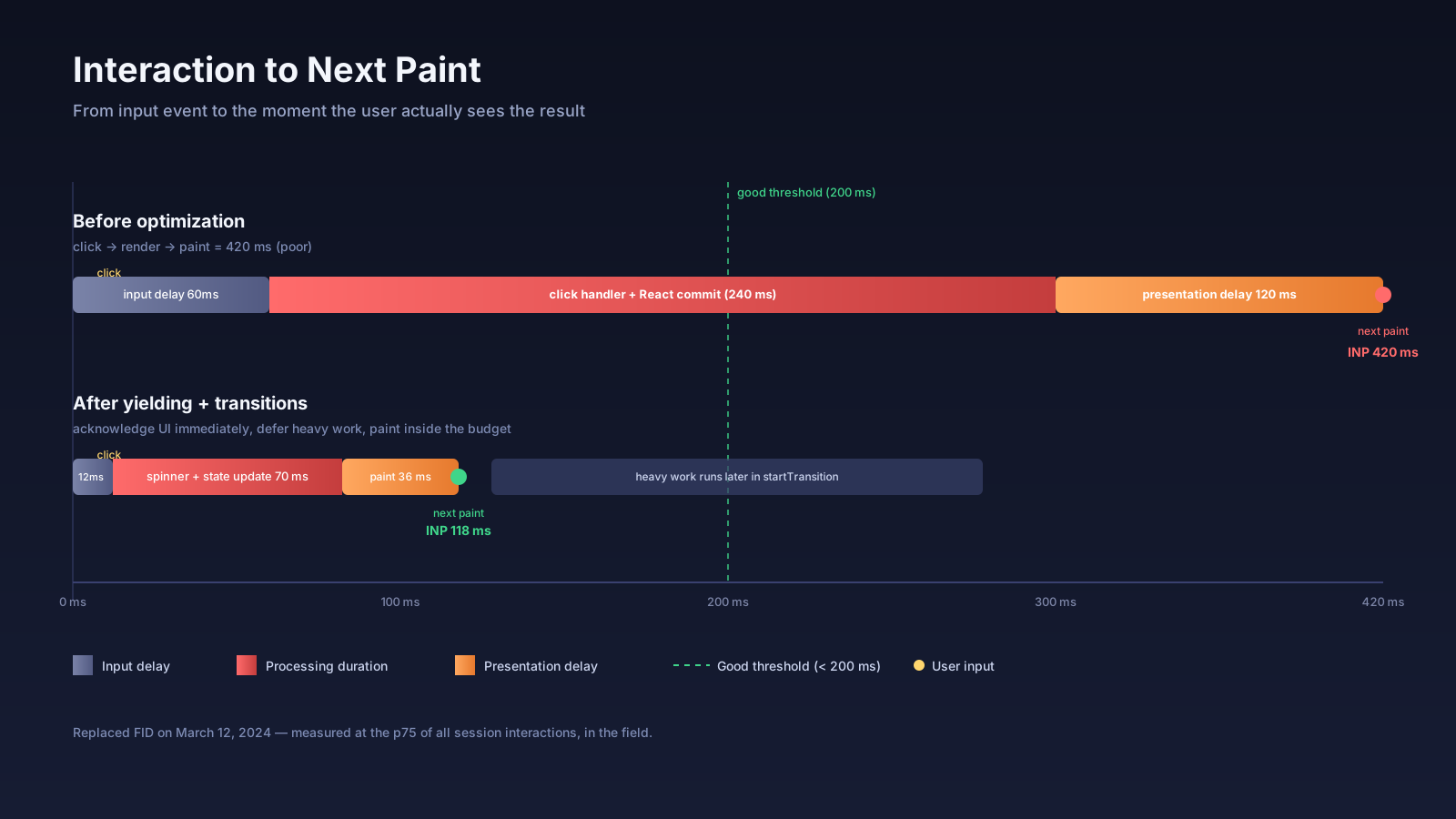
INP looks at every click, tap, and keypress through the entire session and reports the worst (specifically, near-worst — INP uses a high percentile so a single rogue interaction does not dominate). For each interaction it measures the full latency: from the moment the input event fires, through input delay, processing time, and presentation delay, until the browser paints the next frame.
That last part is the key shift. FID stopped its clock when your handler started running. INP keeps the clock running until the user actually sees something change. If your click handler runs in 12ms but the resulting React re-render and paint take another 380ms, INP reports ~400ms — and that is the honest number, because that is what the user felt.
The thresholds Google publishes:
- Good: under 200ms
- Needs improvement: 200–500ms
- Poor: over 500ms
These are at the p75 of all interactions across the session, measured in the field on real users. Lab numbers can be useful for debugging, but the official Core Web Vitals number comes from RUM data via the Chrome User Experience Report.
Why So Many Apps Quietly Fail INP
The classic INP regression is not a single broken interaction. It is the accumulation of small main-thread work that you stopped noticing because your dev machine is fast.
A canonical "Add to cart" button on a slow page does roughly this:
- Update a global store with the new line item.
- Recompute totals, taxes, and shipping eligibility.
- Update derived selectors and recompute memoized values.
- Re-render a component tree of a couple hundred elements.
- Run a few effects that fire analytics and update local storage.
On an M-series MacBook the whole flow finishes inside a frame. On a budget Android with a quarter of the CPU and three browser extensions running, that same flow can sit on the main thread for 400ms. The button click has nothing to paint until it returns. INP correctly reports a poor experience, even though the network is fine and the page looks loaded.
Long tasks are the standard symptom. The legacy Long Tasks API flags anything over 50ms, which is coarse — by the time you see one, you are already over the INP "good" threshold. The newer Long Animation Frames (LoAF) API gives you a much better signal. It traces the entire frame, tells you which scripts contributed, how long style and layout took, and which render blocked the paint. This is the API to use when you actually need to debug a slow interaction.
Measuring INP In Code
The web-vitals library (v4 and up) is the canonical way to report INP from the browser:
import { onINP, onLCP, onCLS } from 'web-vitals';

onINP(({ value, rating, id, attribution }) => {
  navigator.sendBeacon('/rum', JSON.stringify({
    metric: 'INP',
    value,
    rating,
    id,
    target: attribution.interactionTarget,
    type: attribution.interactionType,
    inputDelay: attribution.inputDelay,
    processingDuration: attribution.processingDuration,
    presentationDelay: attribution.presentationDelay,
  }));
});
The attribution object — available in the attribution build (web-vitals/attribution) — is the part you want. It tells you exactly which element, what kind of interaction, and which of the three latency components dominated. That last part is gold for debugging: a high inputDelay means the main thread was busy when input arrived, a high processingDuration means your handler is the problem, and a high presentationDelay means the render and paint after the handler are too slow.
For lab work, Chrome DevTools' Performance panel (back to its proper name as of Chrome ~129, replacing the brief "Performance Insights" rebrand) records LoAF entries automatically and shows them on the timeline.
Optimization Patterns That Actually Help
The fixes for INP are mechanically straightforward but require thinking in terms of frames, not lines of code.
Yield to the main thread. If a handler must do heavy work, do not do all of it before returning. Acknowledge the input first, then defer the heavy part to the next task:
button.addEventListener('click', async () => {
  showSpinner();
  await scheduler.yield?.() ?? new Promise(r => setTimeout(r));
  doExpensiveWork();
});
scheduler.yield() is the modern API — when available, it tells the browser "I am willing to be interrupted by higher-priority work like input or paint." setTimeout(0) is a reasonable polyfill on older browsers.
Use React 18 transitions. When a state change is non-urgent — filtering a long list, recalculating chart data — wrap it in startTransition so React can keep the UI responsive while it processes:
import { startTransition, useState } from 'react';

function Search({ allItems }) {
  const [filtered, setFiltered] = useState(allItems);
  const [query, setQuery] = useState('');

  function onChange(e) {
    setQuery(e.target.value); // urgent: keep input responsive
    startTransition(() => {
      setFiltered(allItems.filter(i => i.name.includes(e.target.value)));
    });
  }

  return <input value={query} onChange={onChange} />;
}
The keystroke updates the input immediately. The expensive filter runs at lower priority, so subsequent keystrokes are not queued behind it. INP drops accordingly.
Move heavy work off the main thread. Sorting tens of thousands of rows, parsing a large JSON blob, doing crypto — that work should not be on the main thread at all. A worker (Worker, SharedWorker, or a Comlink-wrapped abstraction) takes it elsewhere and posts the result back when it is done.
Stop re-rendering things that did not change. When a single click cascades into 800 component updates because your store is poorly partitioned, INP suffers. React.memo, selectors, and proper colocation of state get you out of trouble. The React DevTools Profiler will tell you which components rendered and why; use it before you guess.
Things That Look Like They Help But Do Not
A few habits are worth unlearning.
requestIdleCallback for input-related work is rarely the right call. It postpones work to genuinely idle time, which can be much later than the next frame. For "yield until the browser finishes paint," use scheduler.yield, requestAnimationFrame, or a posted task — not requestIdleCallback.
Debouncing the click handler does not help INP, because the user already clicked. Debouncing input that triggers heavy work (search-as-you-type, autosave) absolutely helps, but only because it reduces the number of expensive interactions. The latency of each one is still your responsibility.
Inline event handlers that allocate a new function on every render are not, in practice, an INP problem. Allocation is cheap. The work the handler does is what matters. Premature memoization of every callback often costs more in code clarity than it saves in CPU.
What To Watch In Your Field Data
When you start collecting INP from real users, a few patterns repeat:
- A single bad route dominates the p75. Look for the one that times out under load.
- The worst interactions cluster on input fields and large data tables.
- Mobile p75 is much worse than desktop. This is normal; budget separately for each.
- Browser extensions add measurable input delay, especially on logged-out pages where ad blockers and password managers do the most work. You cannot eliminate this, but you can stop blaming your code for all of it.
The change from FID to INP is, on balance, a good thing. FID let teams ship pages that felt fast for one second and bad for the rest of the session. INP forces honesty about what happens on the tenth click, the typing-into-a-form interaction, the modal that takes a long beat to open. Treat it as a tool that tells you where your app is actually slow, not a number to game. The optimisations that make INP good — yielding, transitions, smaller bundles, fewer renders — are the same ones that make the app pleasant to use.