

You ship a Next.js site. Lighthouse hands you a 95. The marketing team opens it on a real phone and the hero image still jumps the headline down half a second after load. The product manager wants to know why the AVIF the designer exported isn't being served. Your S3 bill quietly doubles because someone added a new image domain and the optimizer is re-fetching every original on every cache miss.
next/image is one of those components that looks like a drop-in upgrade. You change <img> to <Image>, the team feels modern, and most of the time it just works. Until it doesn't. The places it doesn't are the places nobody reads about: remote images that don't trigger optimization the way you expect, sizes props that are technically valid but tell the browser the wrong story, layout shift that survives width and height because of CSS you forgot about, and CDN behavior that turns the optimizer into a hot path you didn't budget for.
This piece is about those places. Not "what is next/image"; the docs cover that fine. The point here is the second day on the job, after you've already added the component and need to make it actually behave.
What next/image Is Doing Behind The Component
Worth a minute on the mental model, because everything later depends on it.
When you render <Image src="/hero.jpg" width={1200} height={600} alt="..." />, Next.js does three things at request time:
- It generates an
<img>with asrcsetof multiple widths, typically/_next/image?url=...&w=640&q=75,/_next/image?url=...&w=750&q=75, and so on through the device sizes you've configured. - It picks the best format the browser advertises in its
Acceptheader. AVIF first if available, then WebP, then the original. - It sets
loading="lazy"(unless you passedpriority),decoding="async", and uses yourwidth/heightto reserve the layout space before the bytes arrive.
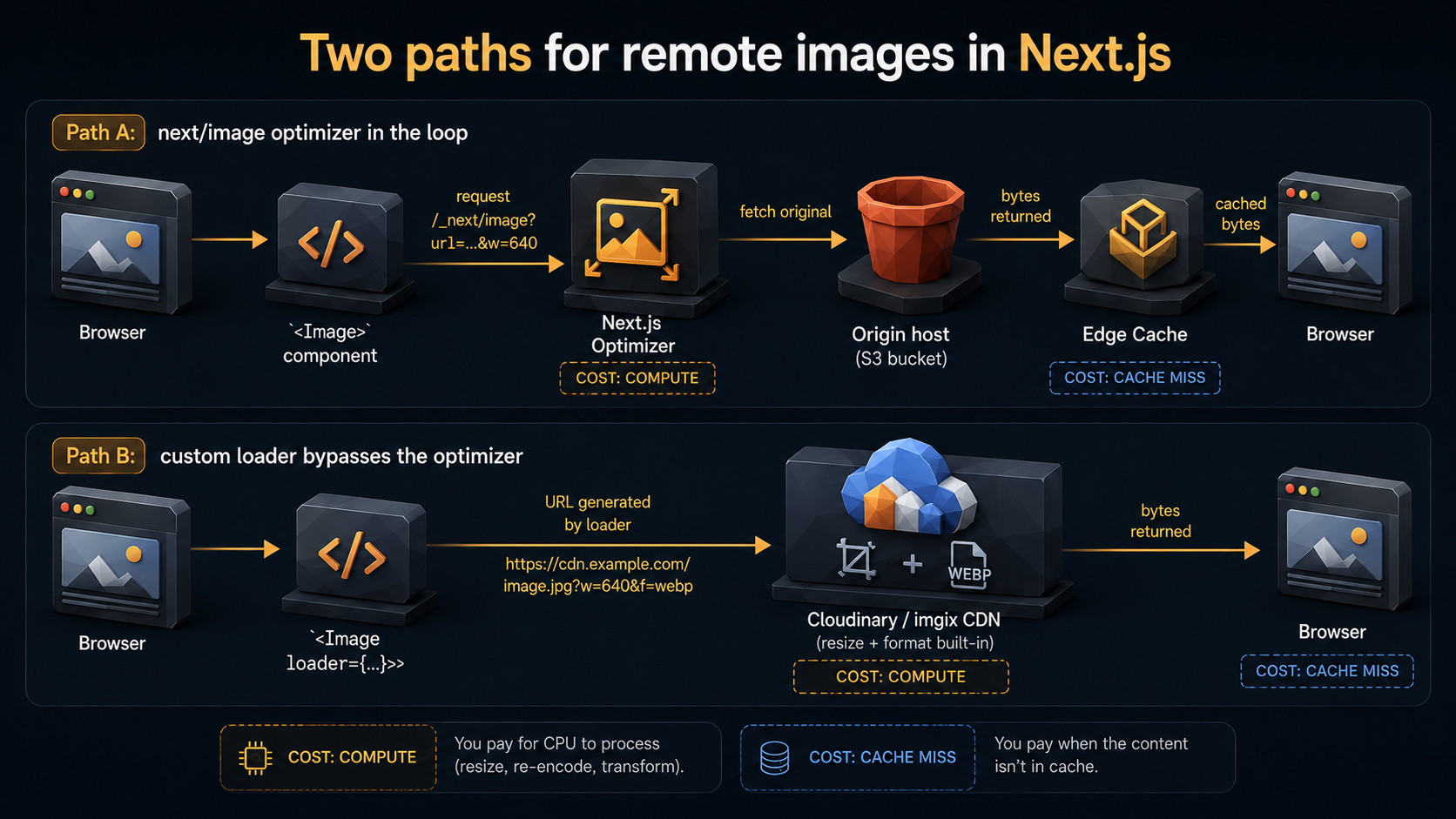
The actual resizing happens on demand. The first request to /_next/image?url=/hero.jpg&w=640&q=75 hits the Next.js image optimizer, which fetches /hero.jpg, resizes it to 640px wide, re-encodes it, and returns the bytes. Subsequent requests come from the cache. On Vercel that cache is the platform's edge cache. Self-hosted, it's .next/cache/images/ on disk, governed by your runtime cache config.
That's the whole loop. Everything else in this article is a consequence of one of those three steps doing something other than what you assumed.
Remote Images: domains Is Gone, remotePatterns Is Stricter Than You Think
The classic config used to be a flat allowlist of hostnames:
module.exports = {
  images: {
    domains: ['cdn.example.com', 's3.amazonaws.com'],
  },
};
images.domains was deprecated in Next.js 14 and remotePatterns is the supported option in current versions. The pattern model is more verbose, and that verbosity is the point. With domains: ['s3.amazonaws.com'] you accidentally allowed every bucket on AWS to feed through your optimizer. Anyone who guessed the URL could push your optimizer to fetch and resize arbitrary images on your dime.
remotePatterns makes you say what you actually mean:
module.exports = {
  images: {
    remotePatterns: [
      {
        protocol: 'https',
        hostname: 'cdn.example.com',
        pathname: '/images/**',
      },
      {
        protocol: 'https',
        hostname: '**.your-cms.io',
        pathname: '/uploads/**',
      },
    ],
  },
};
A few things to know about the matcher.
The hostname field is a literal match unless you use * (single subdomain segment) or ** (multiple). So *.your-cms.io matches assets.your-cms.io but not eu.assets.your-cms.io; you want **.your-cms.io for that. The pathname field uses glob patterns, and the leading slash matters. pathname: 'images/**' will silently match nothing because the actual URL path starts with /.
When the optimizer rejects a URL, usually because nobody updated remotePatterns after a CMS migration, the failure is loud in the dev server (hostname "new.cdn.example.com" is not configured) and silent in production. You'll get a 400 from /_next/image and a broken image. The fix is the same in both cases, but the production version tends to ship because nobody noticed in QA. Add a smoke test that fetches one optimized URL per remote host you depend on, and run it in CI against a built site.
One more thing: if your remote host already serves optimized images (Cloudinary, imgix, an in-house image service), running them through the Next.js optimizer is wasted work. The optimizer downloads the already-optimized version and re-encodes it, often producing a slightly worse result and definitely adding latency. Two ways out: either use unoptimized on those specific <Image> instances, or write a custom loader and let the upstream service do its job.
import Image, { type ImageLoader } from 'next/image';

const cloudinaryLoader: ImageLoader = ({ src, width, quality }) => {
  const params = ['f_auto', 'c_limit', `w_${width}`, `q_${quality || 'auto'}`];
  return `https://res.cloudinary.com/your-account/image/upload/${params.join(',')}/${src}`;
};

export function CloudinaryImage(props: React.ComponentProps<typeof Image>) {
  return <Image loader={cloudinaryLoader} {...props} />;
}
The custom loader receives src, width, and quality, and returns the URL to fetch. Next.js still generates the srcset, still picks a width based on the sizes prop, still lazy-loads; it just doesn't run the bytes through its own optimizer. Cloudinary (or whoever) does the resize, you get their CDN's caching, and your optimizer isn't in the request path at all.
The sizes Prop Is The One Everyone Gets Wrong
Here's the failure mode. Your component looks responsible:
<Image src="/card.jpg" width={800} height={600} alt="..." />You think you've done your job. Width is set. Height is set. The browser knows the aspect ratio, so layout shift is fine. And technically it is fine for layout. But that <Image> is going to download an 800px-wide variant on every viewport, because you never told the browser anything about how big the image will actually display.
The sizes prop is how you tell the browser "at this viewport, the image takes up this much space." The browser then picks the smallest srcset candidate that satisfies the displayed size at the current device pixel ratio. Without sizes, Next.js defaults to 100vw, which is correct for hero images and wrong for almost anything else.
Imagine a 4-column grid of product cards on desktop, 2 columns on tablet, 1 column on phone. The honest sizes is:
<Image
  src="/product/123.jpg"
  width={800}
  height={600}
  alt="Heritage chair, oak finish"
  sizes="(max-width: 640px) 100vw, (max-width: 1024px) 50vw, 25vw"
/>
Read it right to left. The default, when no media query matches, is 25vw, the desktop case. Then a 1024px breakpoint takes you to 50vw (the tablet case). Then a 640px breakpoint takes you to 100vw (the phone case).
With that prop, a browser on a 1440px desktop knows the image will display at ~360px, asks for a srcset candidate around that width (probably 384 or 640 depending on your deviceSizes config), and downloads about a quarter of the bytes it would have downloaded without sizes. On a phone, where the card is full-width, it still gets the right size, because you told it.
You can use absolute pixel values too, and sometimes they're more honest than viewport units. A sidebar that's locked at 320px isn't 25vw on a 1440px screen, it's just 320px:
<Image
  src="/avatar.jpg"
  width={320}
  height={320}
  alt="..."
  sizes="(max-width: 768px) 64px, 320px"
/>
If you only remember one thing from this section: every <Image> that isn't full-width needs a sizes prop. If you set fill (more on that next), sizes is required; Next.js will warn you in development if you forget.
Layout Shift Is Not Just About width And height
CLS (Cumulative Layout Shift) is the metric that catches images jumping content around as they load. The naive fix is "always pass width and height," and that's correct as far as it goes. Next.js uses those to set the aspect-ratio on the rendered <img>, the browser reserves the box, and the content below doesn't shift when bytes arrive.
But here's where it falls apart in real projects:
CSS overrides. If your stylesheet sets img { width: 100%; height: auto } and you have a card with a max-width that lets the image expand, the aspect-ratio still saves you. Good. But if you have a parent with a fixed height and the image inside is set to object-fit: cover, the layout box is whatever the parent decides, and the width/height on the image only governs the aspect ratio used for srcset sizing, not the rendered size. The reservation is still correct, just for a different reason. You're fine. But if the parent height is in vh and depends on JS-measured viewport, you can get a one-frame shift on first paint. The fix is to set the parent's height in dvh or a CSS variable that doesn't depend on JS.
The fill prop and its position requirement. When the image's display size depends on its parent (a hero that fills a card, a card image that crops to a fixed ratio), fill is the right tool. The parent must have position: relative (or absolute, or fixed) for fill to do anything sensible:
<div className="relative aspect-[16/9] w-full">
  <Image
    src="/hero.jpg"
    fill
    alt="..."
    sizes="100vw"
    className="object-cover"
  />
</div>
If you forget position: relative on the parent, the image escapes the parent box, fills the nearest positioned ancestor, and your hero suddenly covers your entire viewport. It's a five-second debug once you know to look, and a forty-five-minute debug the first time.
The placeholder shift. placeholder="blur" with a blurDataURL shows a tiny low-res preview while the full image loads. That part doesn't cause shift; the preview occupies the reserved box. But placeholder="empty" paired with a CSS background-color and a transition can cause an apparent "shift" because the background is visible for a frame after the image starts decoding. Not a CLS event in the metric sense, but the eye sees it. If you care, set placeholder="blur" and ship a real blur preview. Statically imported local images get a blurDataURL for free via the build:
import hero from '@/public/hero.jpg';

<Image src={hero} alt="..." placeholder="blur" sizes="100vw" />
For remote images you have to generate the blur yourself: either at build time (Plaiceholder works well for this) or at the CMS layer (most modern CMSes expose a tiny base64 preview alongside the asset).
Above-the-fold lazy loading. By default every <Image> is loading="lazy". That's the right default for most images, but it's the wrong default for above-the-fold images. The browser still reserves the box, so there's no CLS, but the image visibly fades in after the rest of the page. Use priority on the hero:
<Image
  src="/hero.jpg"
  width={1920}
  height={1080}
  alt="..."
  priority
  sizes="100vw"
/>
priority does two things: it disables lazy loading, and it adds the image to the document's <link rel="preload">. The hero starts downloading before the page's CSS even finishes parsing, which is the actual fix for "the hero shows up too late." Don't put priority on more than one or two images per page; preloading everything is preloading nothing.
CDN Behavior, Cache Costs, And Why The Optimizer Isn't Free
This is the part most teams discover from a billing alert.
The Next.js optimizer is a service. Every unique combination of (source URL, width, quality, format) is a cache entry. On Vercel, the platform charges for each optimization, and the cache invalidates when the source image's Cache-Control says it should. Self-hosted, the cache is on disk and you're paying in I/O and CPU instead of dollars.
A few practical consequences.
Don't pass arbitrary quality values. Every distinct quality multiplies the cache space. Stick to one or two. Next.js defaults to 75, and unless you have an art director who actually checks, that's fine. Configure the values you'll allow:
module.exports = {
  images: {
    qualities: [60, 75, 90],
  },
};
Limit deviceSizes to the breakpoints you actually use. The defaults are sensible: [640, 750, 828, 1080, 1200, 1920, 2048, 3840]. If you don't have a design that needs 3840px (most sites don't), drop it. Each device size is another cache entry per image, per format, per quality.
Honor Cache-Control from the origin. If your S3 bucket serves images with Cache-Control: max-age=31536000, immutable, the optimizer caches the resized variants for a year too. Good. If your CMS serves them with Cache-Control: max-age=60, the optimizer re-fetches and re-resizes every minute. Bad. Check the origin headers before you blame the optimizer:
curl -I https://cms.example.com/uploads/hero.jpgLook for Cache-Control, ETag, and Last-Modified. Long max-age and a strong ETag are what you want. If you can't control the origin, set minimumCacheTTL in your Next.js config so the optimizer caches longer than the origin says:
module.exports = {
  images: {
    minimumCacheTTL: 60 * 60 * 24 * 30, // 30 days
  },
};
The CDN in front of Next.js is the cache that matters. Whether you're on Vercel, Cloudflare, Fastly, or a CDN you operate yourself, the /_next/image URL is what gets cached at the edge. The URL is fully cacheable: it includes everything that varies (source URL, width, quality) as query parameters, and the response has Vary: Accept so AVIF/WebP/JPEG variants are cached separately. Two things to verify on your CDN:
- Query strings are part of the cache key. (Most CDNs do this by default; some don't unless you tell them.)
- The
Vary: Acceptheader is respected. If your CDN stripsVaryor normalizes theAcceptheader to the same value for all clients, you'll serve AVIF to browsers that can't render it, and that's a broken page.
Watch out for image hot-spots. A single article with a hero image used by 100,000 readers a day is cheap: one optimization, infinite cache hits. A user-generated avatar gallery with a million unique faces is expensive: every face is a unique source URL, every face spawns a fresh set of variants, every cache miss is a fresh optimization. For high-cardinality content, a custom loader pointing at a service designed for that workload (Cloudinary, imgix, AWS CloudFront Functions with the Lambda@Edge image handler) tends to beat the built-in optimizer at scale.
The Patterns That Actually Work
A few habits that turn next/image from a footgun into a tool.
Co-locate width and height with the design. If your design system defines a <ProductCard> whose image area is 4:3 at any width, encode that in the component: <Image width={800} height={600} sizes="..." />. Don't let arbitrary callers pass arbitrary aspect ratios; the optimizer cache explodes and the layout starts shifting in unexpected places.
Generate sizes from your grid. If you have a layout system with named breakpoints, write a small helper that produces the right sizes string:
type GridSpan = { mobile: number; tablet: number; desktop: number };

export function gridSizes({ mobile, tablet, desktop }: GridSpan): string {
  // Numbers are column counts out of 12. Adjust to your grid.
  return [
    `(max-width: 640px) ${Math.round((mobile / 12) * 100)}vw`,
    `(max-width: 1024px) ${Math.round((tablet / 12) * 100)}vw`,
    `${Math.round((desktop / 12) * 100)}vw`,
  ].join(', ');
}

// usage
<Image src="..." width={800} height={600} alt="..."
       sizes={gridSizes({ mobile: 12, tablet: 6, desktop: 3 })} />
The helper is twelve lines and saves the team from "what sizes does a sidebar take" forever.
Treat one image as priority. The LCP candidate, almost always the hero, gets priority. Everything else stays lazy. If you have a sneaky LCP (a quote pulled-out from a long article, an avatar at the top of a feed), put priority on that one too. Lighthouse will tell you which element it picked as the LCP; aim priority at that.
Set a placeholder strategy and stick with it. Either every image above the fold has a blur, or none does. The eye notices when only some of them do.
Audit your bundles, not just your images. next build prints a list of static page sizes, and you can ask it for an image-cache report. On Vercel, the project's "Image Optimization" dashboard shows the top sources by request count; that's the page to open first when the bill spikes. Self-hosted, the cache directory's size on disk and your origin's request log are the two things to track.
Don't optimize what doesn't need optimizing. SVGs, tiny icons, and pre-baked thumbnails coming from a CMS that already produced them should use unoptimized (or a custom loader that does nothing). The optimizer's per-request overhead is small but real, and there's no point paying it to ship the same bytes back.
None of this is exotic. The default behavior of <Image> is good enough that you can ship a site without knowing any of it, and many teams do. The cost shows up later: as a CLS regression after a redesign, a CDN bill that's three times what it should be, or a "why does our marketing site feel slow on mobile" thread that goes on for two months. The fixes are all small. The trick is knowing where to look.