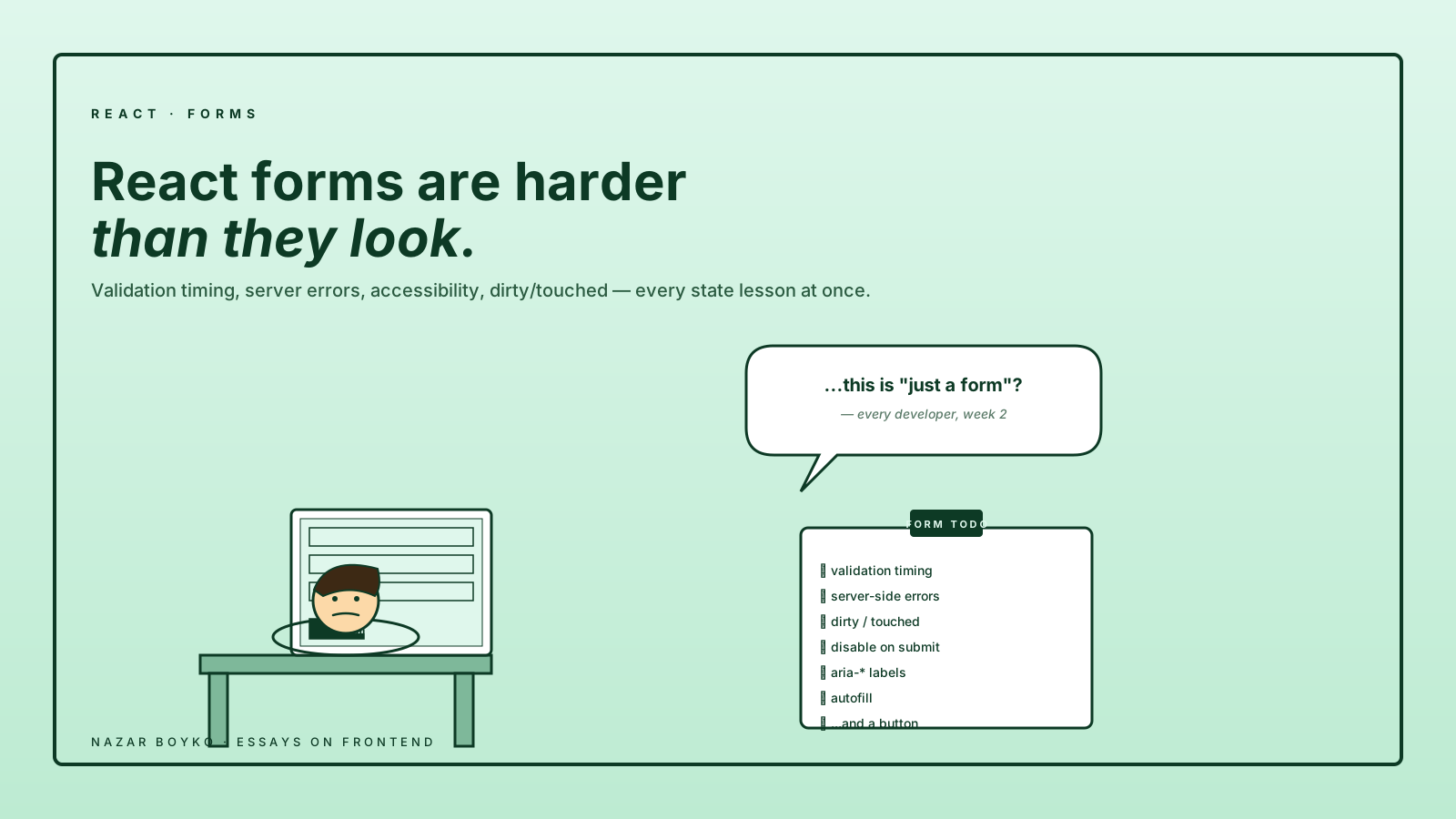
If you've ever quoted a form as "two days of work" and shipped it three weeks later, you're in good company. Forms look like the simplest thing in a UI — a few inputs, a button, send the values to the backend. Then the requirements arrive: validation that runs at the right time, errors that don't shout at the user mid-typing, server-side errors mapped to the right field, a Save button that disables itself, accessibility that survives a screen reader.
Forms are where every state-management lesson in React shows up at once. This article is the survival guide.
Validation Timing Is The Real Problem
The hardest decision in form UX is when to show errors. Three common policies, all of them wrong in slightly different situations:
- Validate on every keystroke. A user typing their email sees "invalid email" after every letter until the moment they finish. Annoying.
- Validate on submit only. The user fills out fifteen fields, hits Submit, and gets back a wall of red. They have to read all of it before they know what to fix.
- Validate on blur. Probably the best default. Errors appear when the user leaves a field, which usually means they think they're done with it.
In practice, the policy that works best is progressive validation: validate on blur for a fresh field, then re-validate on every keystroke once the field has shown an error. The user gets quick feedback while fixing a mistake, but isn't yelled at while typing a fresh value.
This is the kind of behaviour that's a pain to write by hand and a one-line config in a form library. Which is most of the reason form libraries exist.
"Dirty" And "Touched" Are Both Important And Different
Two pieces of state every form needs to track:
- Dirty: has the value changed from its initial value?
- Touched: has the user interacted with this field?
A field can be touched without being dirty (clicked into, then clicked out without changing anything). It can be dirty without being touched (programmatically updated). The difference matters for UX:
- "Dirty" decides whether to show the unsaved changes banner.
- "Touched" decides whether to show validation errors.
// Roughly what react-hook-form tracks for you
const formState = {
  dirtyFields: { name: false, email: true },
  touchedFields: { name: true, email: true },
  errors: { email: { message: 'Invalid format' } },
  isDirty: true,
  isSubmitting: false,
};
Tracking these by hand is doable. It's also the kind of thing that turns a 50-line component into a 200-line one. After the third form, you reach for a library.
The Stack That Won
In 2026, the practical default for non-trivial React forms is react-hook-form + Zod (or Valibot, or Yup — same idea):
import { useForm } from 'react-hook-form';
import { zodResolver } from '@hookform/resolvers/zod';
import { z } from 'zod';

const schema = z.object({
  name: z.string().min(1, 'Required'),
  email: z.string().email('Invalid email'),
  age: z.coerce.number().min(18, 'Must be 18+'),
});

function SignUpForm() {
  const {
    register,
    handleSubmit,
    formState: { errors, isSubmitting },
  } = useForm({
    resolver: zodResolver(schema),
    mode: 'onTouched',     // first validation on blur, then re-validate on every change
  });

  return (
    <form onSubmit={handleSubmit(onSubmit)}>
      <input {...register('name')} />
      {errors.name && <span>{errors.name.message}</span>}

      <input {...register('email')} />
      {errors.email && <span>{errors.email.message}</span>}

      <input type="number" {...register('age')} />
      {errors.age && <span>{errors.age.message}</span>}

      <button disabled={isSubmitting}>Sign up</button>
    </form>
  );
}
What's happening here:
- Zod describes the shape of valid data and generates a TypeScript type from it (
z.infer<typeof schema>). One source of truth for validation and types. - react-hook-form uses uncontrolled inputs with refs, only re-renders the parts that need to (the field that's now invalid, the submit button when validity changes), and gives you a typed
onSubmithandler. mode: 'onTouched'picks the validation timing — first check happens when the user leaves a field, and after that every keystroke re-validates so they get instant feedback while fixing a mistake. ('onBlur'only validates on blur and never re-checks until submit, which is too quiet for most flows.)
The result: a form that validates correctly, performs well at scale, and gives you the right pieces of state without writing them by hand.
Server-Side Errors Are The Forgotten Half
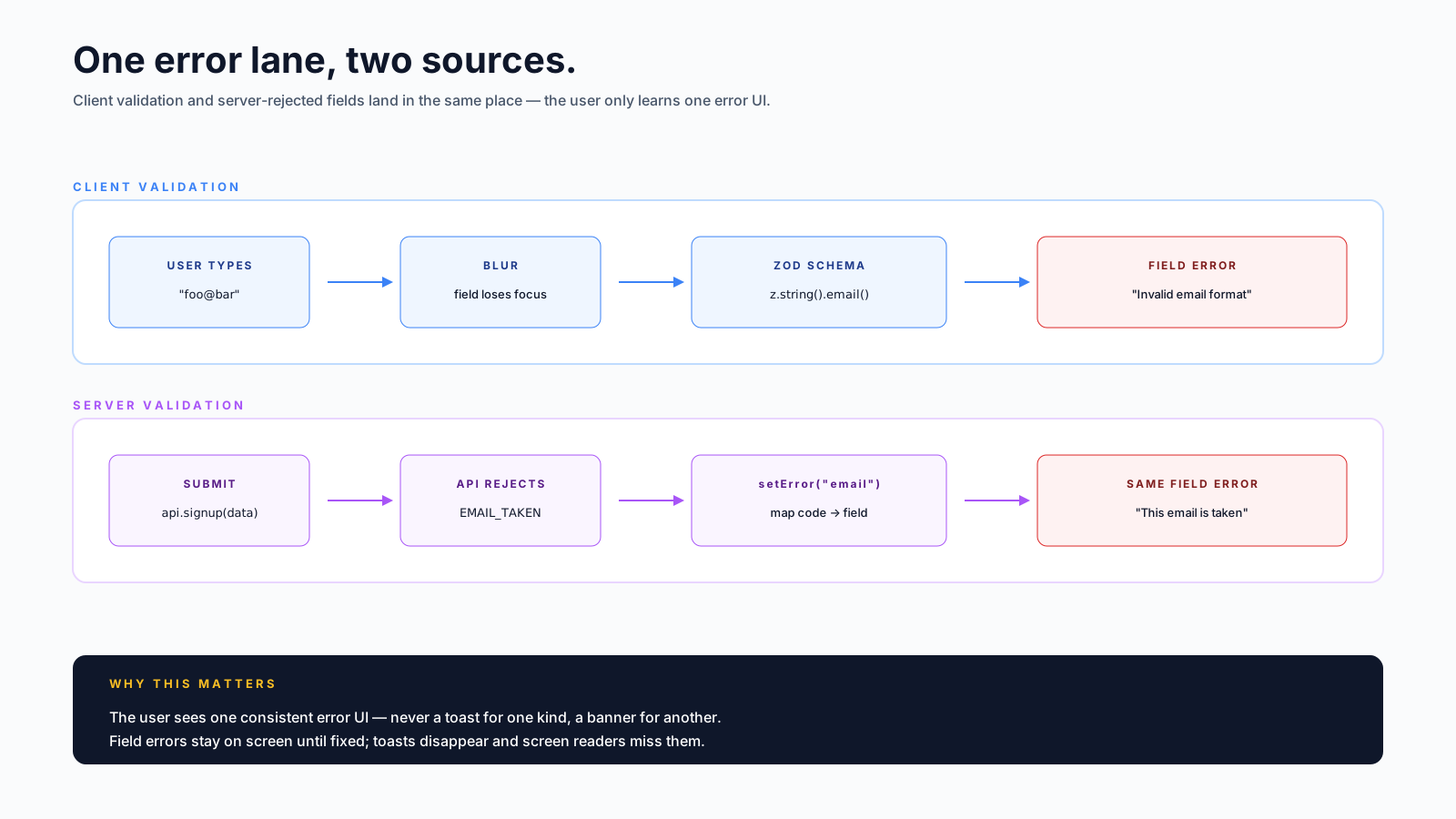
Most form tutorials stop at client validation. Real apps have to handle errors that only the server knows about: "username taken", "card declined", "rate limited". These need to land on the correct field:
async function onSubmit(data) {
  try {
    await api.signup(data);
    navigate('/welcome');
  } catch (err) {
    if (err.code === 'EMAIL_TAKEN') {
      setError('email', { message: 'This email is already registered' });
      return;
    }
    if (err.code === 'WEAK_PASSWORD') {
      setError('password', { message: 'Pick a stronger password' });
      return;
    }
    setError('root', { message: 'Something went wrong, try again' });
  }
}
setError('field', ...) from react-hook-form (or the equivalent in your library) lets the server-side rejection live in the same form-error system as the client-side ones. The user sees one consistent error UI whether the failure was local or remote.
The pattern that goes wrong: showing a toast for server errors. Toasts disappear, accessibility readers miss them, the user doesn't know which field is problematic. Field-level errors stay on screen until fixed.
Optimistic Submission, Disable, And The Double-Click
The Save button needs to do four things at once:
- Disable while submitting — prevent double-clicks.
- Show a loading state — give feedback that something is happening.
- Re-enable on error — let the user retry.
- Stay disabled while invalid — no point submitting bad data.
The minimal correct version:
<button
  type="submit"
  disabled={!formState.isValid || formState.isSubmitting}
>
  {formState.isSubmitting ? 'Saving…' : 'Save'}
</button>
This is shorter than people expect because the form library is doing the bookkeeping. Without it, you'd have a useState('idle' | 'submitting' | 'success' | 'error') and several more lines of logic.
Accessibility, In One Section
Forms are where accessibility most often quietly fails. The minimum bar:
- Every input has an associated label.
<label htmlFor="email">plus<input id="email">. Or wrap the input in the label. - Errors are linked with
aria-describedbyso screen readers announce them when the field has focus. - Required fields use
aria-required="true", not just a red asterisk. - Error messages have
role="alert"so they're announced when they appear. - Don't use placeholder as the label. It disappears as soon as the user types.
<div>
  <label htmlFor="email">Email</label>
  <input
    id="email"
    type="email"
    aria-required="true"
    aria-invalid={!!errors.email}
    aria-describedby={errors.email ? 'email-error' : undefined}
    {...register('email')}
  />
  {errors.email && (
    <span id="email-error" role="alert">{errors.email.message}</span>
  )}
</div>
Five lines of attributes that take a form from "looks fine" to "actually usable for everyone".
The Subtle Bugs Forms Always Hit
A non-exhaustive list, in roughly the order they show up:
- Form auto-fills don't trigger React's
onChange. Some browser autofills bypass the React event system. With react-hook-form, this works because it reads from refs at submit. Custom controlled inputs sometimes need a workaround. - Submitting on Enter inside a multi-input form. If there's no submit button, pressing Enter in any input submits the form. Either accept that or add
type="button"to non-submit buttons. - Number inputs and locale.
<input type="number">accepts comma vs dot decimals depending on the user's locale. If the backend wants., do the conversion explicitly. - File inputs are uncontrolled by force. You can't set
<input type="file" value={...} />. Always use refs orregister. - Dynamic field arrays. Adding/removing fields from a list (
useFieldArrayin react-hook-form) is its own small skill. Read the docs once before you write your own.
A Quick Mental Map
When you're about to build a form, ask:
- How many fields? Under 5 with no async validation → plain
useStateis fine. More than that → react-hook-form. - Where does validation come from? Reuse the same schema for the API layer if you can — Zod can validate both client and server.
- What's the validation timing UX? Pick once. Don't change it per field unless you have a specific reason.
- How are server errors mapped to fields? Build this into the submit handler from day one.
- What's the accessibility plan? Labels, aria, role="alert" — non-negotiable.
Forms remain harder than they look because they're not just UI — they're a tiny app that has to coordinate user input, async work, server feedback, and accessibility. The good news is that the modern stack (react-hook-form + Zod + a discipline around timing) handles 90% of it. The remaining 10% is the part you actually had to think about anyway.